Track volunteer hours
Turn attendance into approved hours of service without a paper sign-in sheet: draft time sheets from every training, callout, event and meeting, let members log unscheduled work, edit and approve from one place, print the sheet a sheriff or board asks for, and report by member, category or month.
About 12 minutesStep 12 of 23 in team setup
Turn on hour tracking
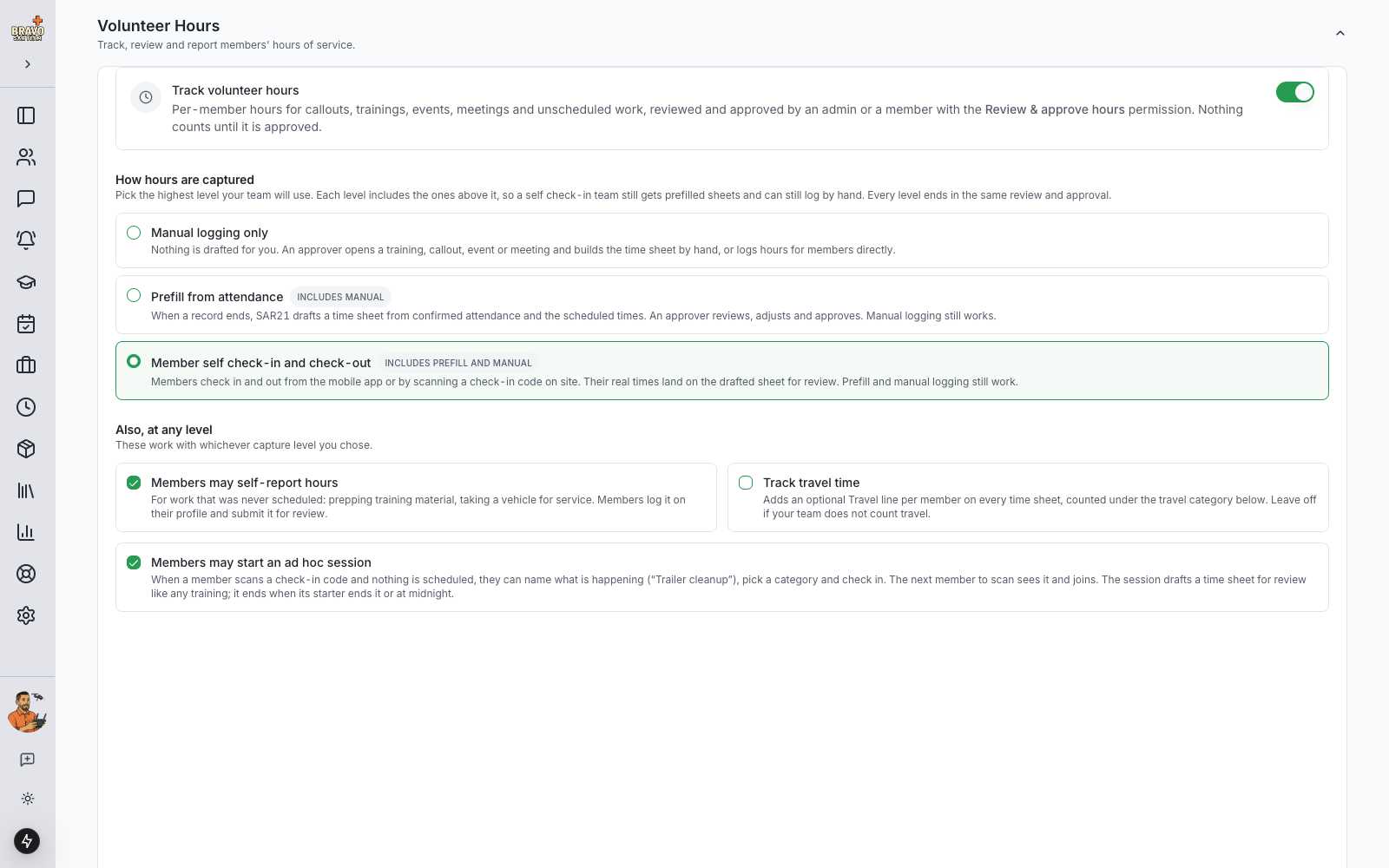
Open Admin Settings and expand Volunteer Hours. Flip the switch and SAR21 seeds a starter set of categories (Search and Rescue, Training, Meetings, Equipment Maintenance, Community Outreach and a few more) that you can rename, add to or archive.
Then pick how hours get captured. Every team runs this differently, so the ladder starts simple and you climb it when you are ready. Each level includes the ones below it, and every level ends in the same review and approval.
- Manual logging only: nothing is drafted for you. An approver opens a training, callout, event or meeting and builds the time sheet, or logs hours for members directly.
- Prefill from attendance: within an hour of a record ending, SAR21 drafts a time sheet for everyone who was confirmed present, using the scheduled times. Nothing counts until an approver looks at it.
- Member self check-in: members check in and out from the mobile app or by scanning a check-in code posted on site. Their real times land on the drafted sheet.
Three more switches live here and work at any level. Members may self-report hours lets members log unscheduled work from their profile. Track travel time adds optional travel lines to time sheets. Members may start an ad hoc session lets a member who scans a check-in code name what is happening when nothing is scheduled.
Shape your categories
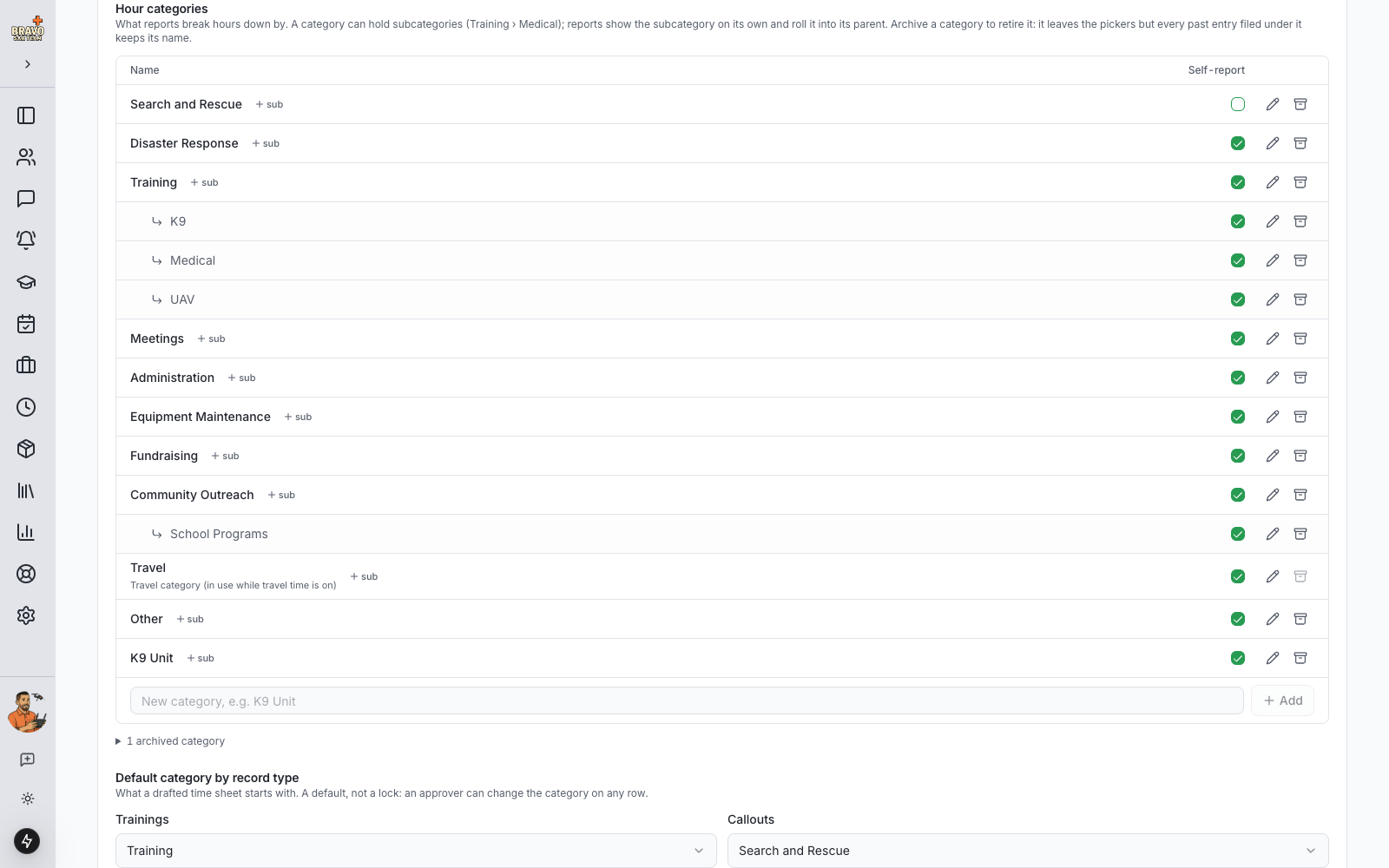
Categories are how reports get sliced, so make them match how your team talks. Add a category for anything you report on separately, and add subcategories under a parent when you want detail without losing the roll-up: Training with K9, Medical and UAV underneath, say. Reports show the subcategory and the parent total.
The Self-report column decides which categories a member may pick when logging their own hours. Untick Search and Rescue, for instance, so callout hours only ever come from a callout record. Archiving a category hides it from pickers but keeps every hour already logged against it.
Set the defaults and travel lines
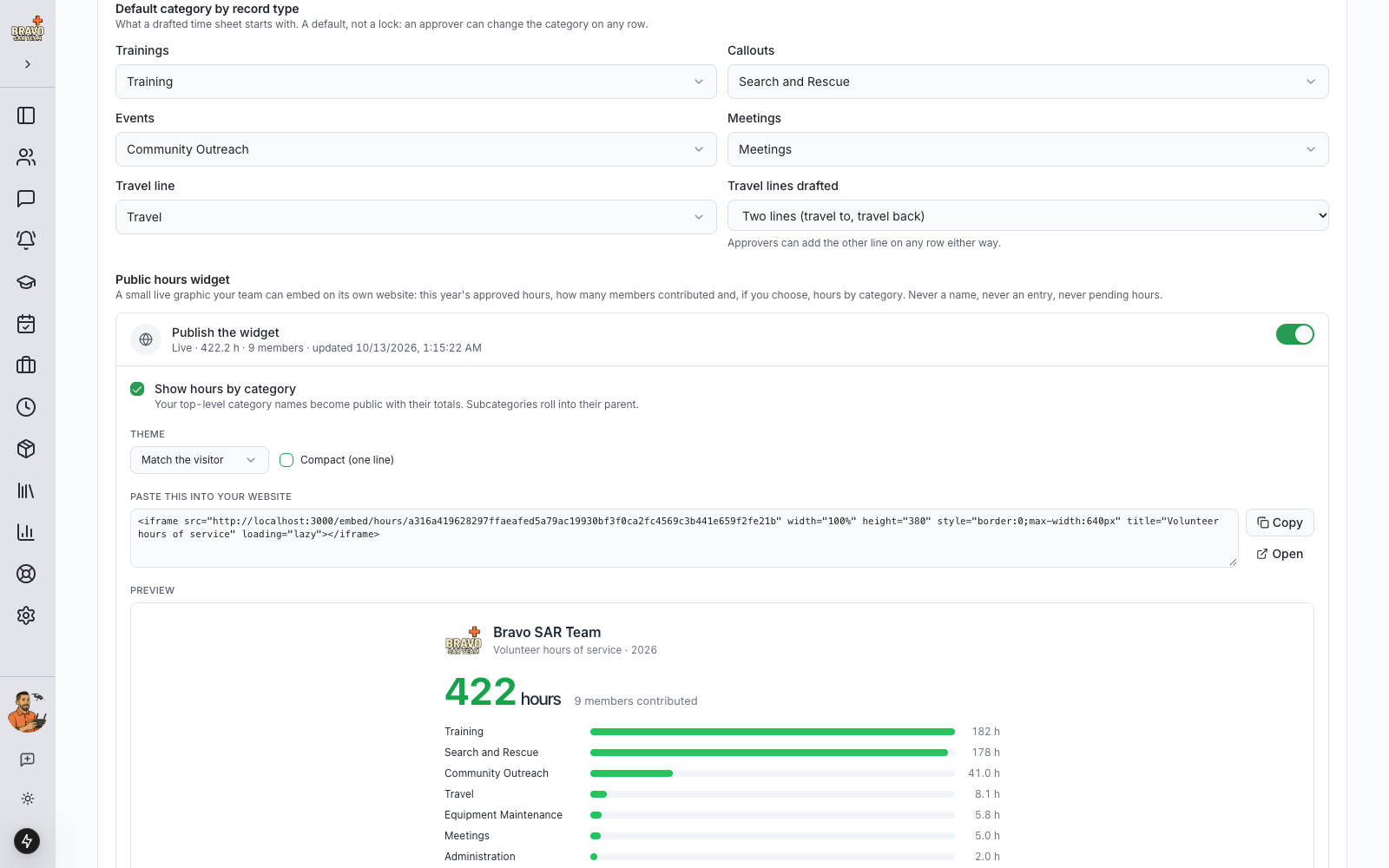
Below the categories, pick the category a drafted sheet starts with for each record type: trainings default to Training, callouts to Search and Rescue, events to Community Outreach, meetings to Meetings. These are defaults, not locks; an approver can change the category on any row.
With Track travel time on, choose which category travel counts under and how your team counts travel: a single Travel line per member for the round trip, or a Travel to line and a Travel back line. Drafted sheets follow this, and the car icon on a row offers the same lines.
Choose who approves
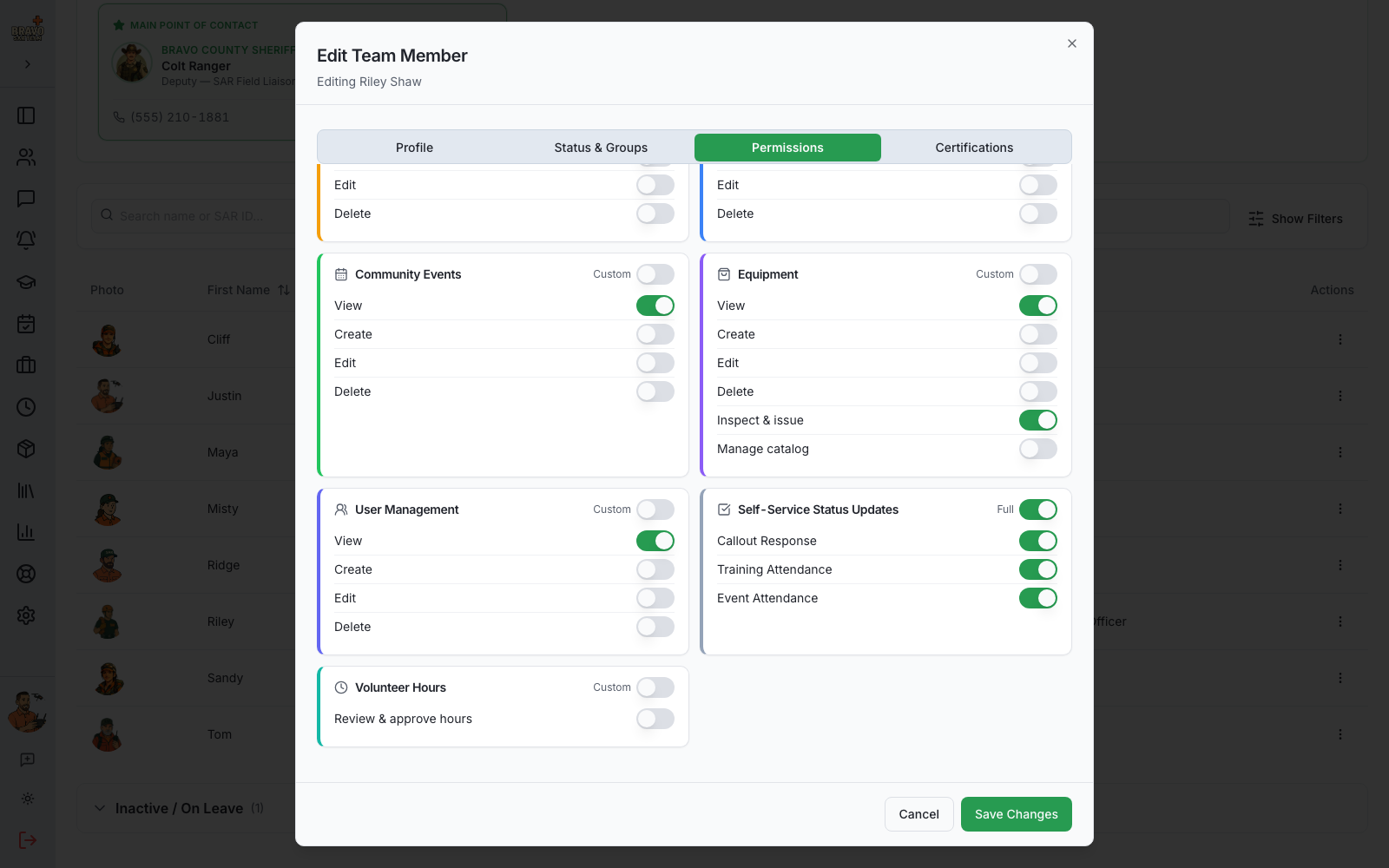
Admins can always review and approve. To let a training officer or an hours coordinator do it without full admin rights, open the member under Team Members and switch on Review & approve hours. The Volunteer Hours page appears in the sidebar for everyone who can approve.
Find your way around Volunteer Hours
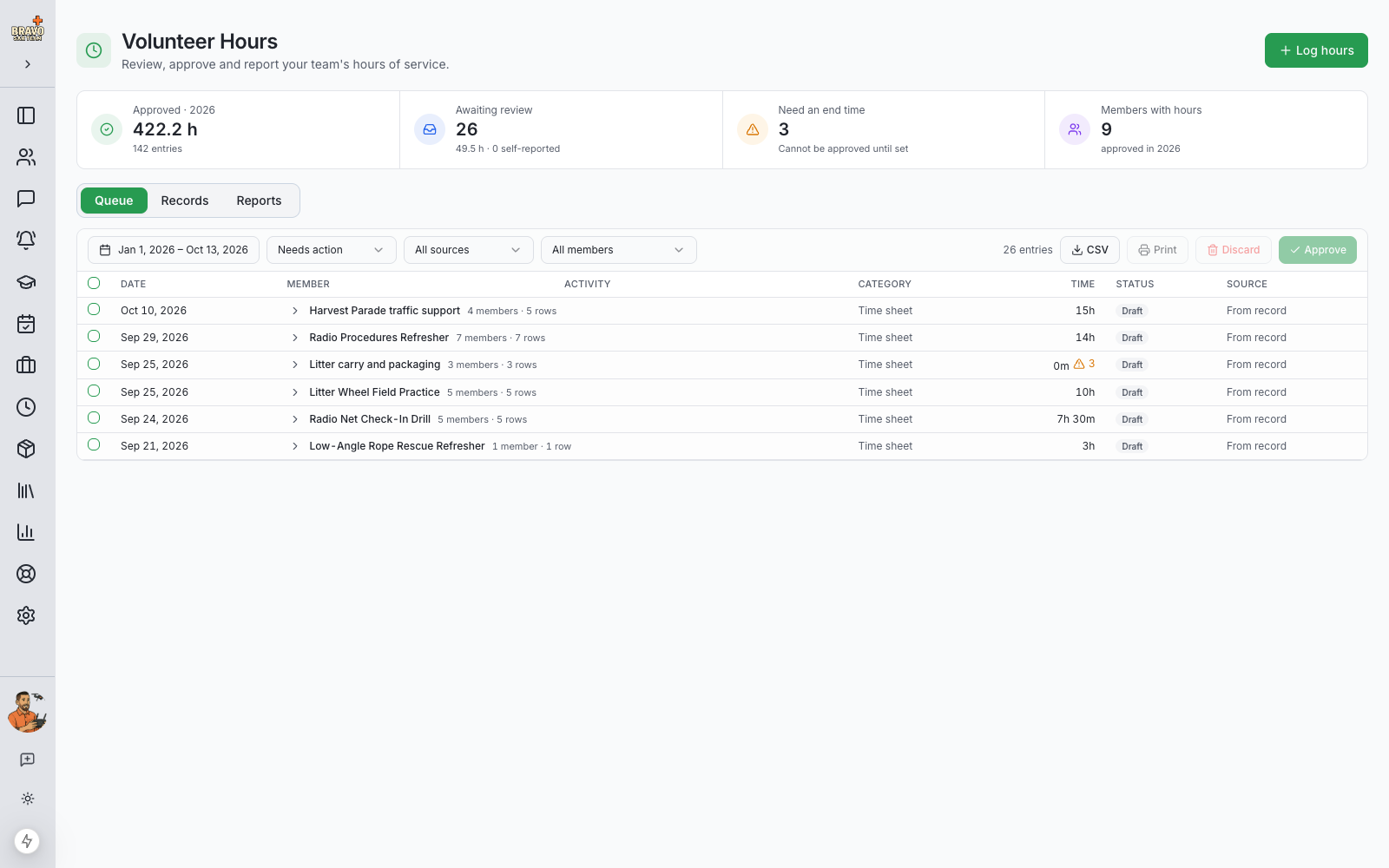
The Volunteer Hours page opens on four tiles: approved hours this year, hours awaiting review, rows that still need an end time, and how many members have approved hours. Under them are three tabs.
- Queue: every row that needs a decision, grouped by time sheet, with filters for date range, status, source and member. Approve, return, print or discard from here.
- Records: every training, callout, event and meeting, and whether each has a time sheet yet. Switch it to By day to see everything that happened on a date.
- Reports: totals by member, category, activity and month, the printable monthly report, and CSV downloads.
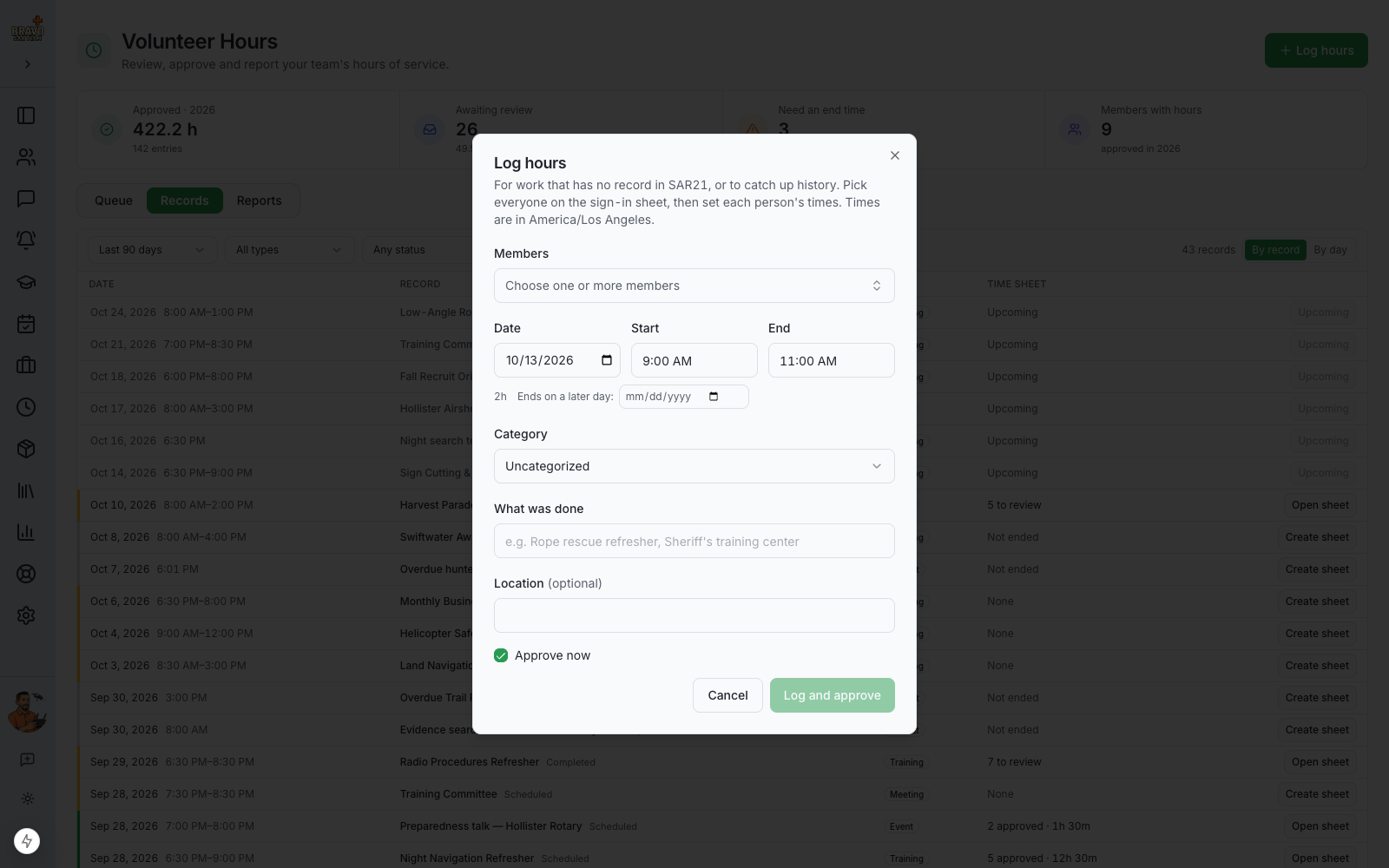
The Log hours button at the top right logs hours for one or more members directly, for work that has no record in SAR21.
Draft a time sheet from a record
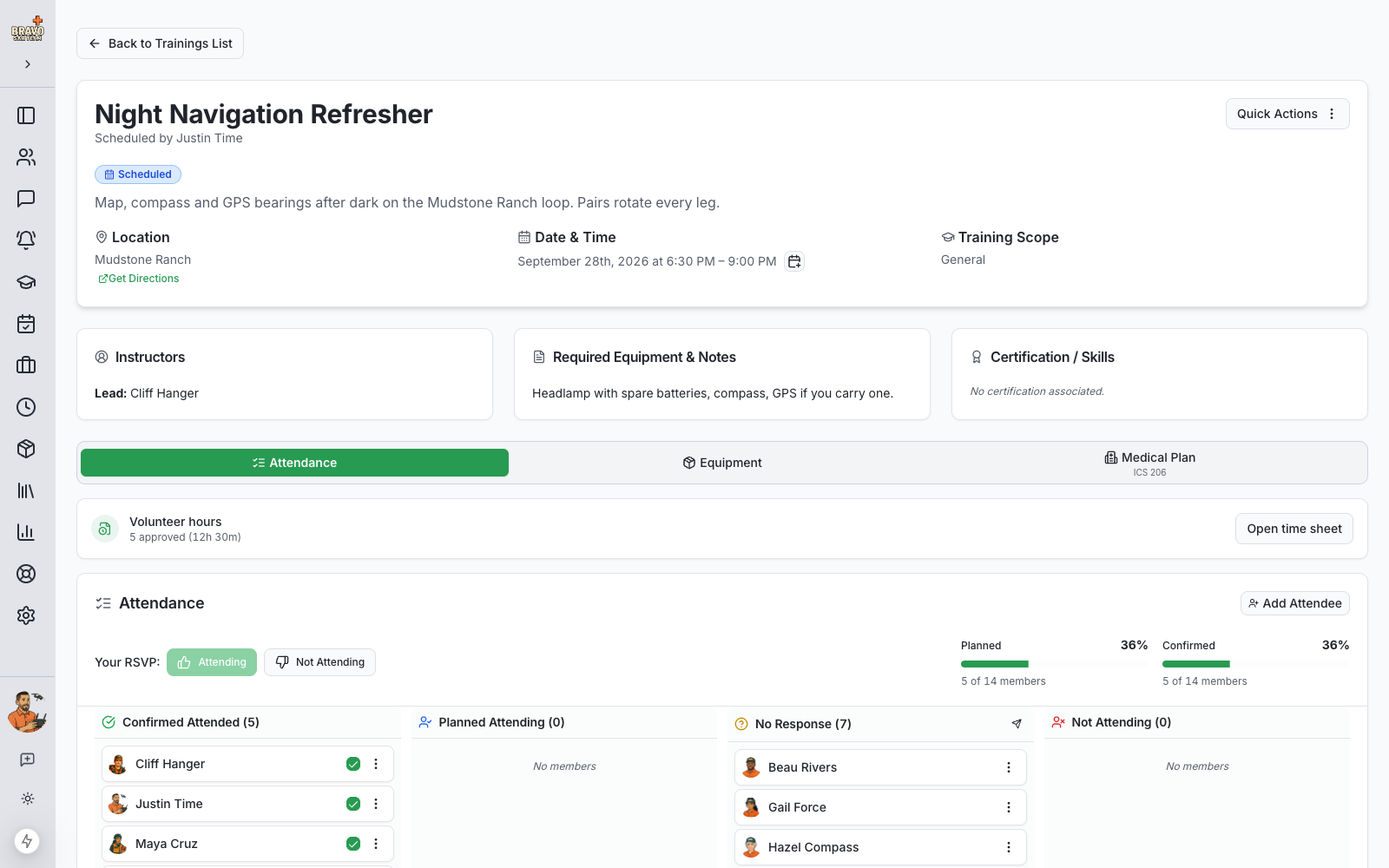
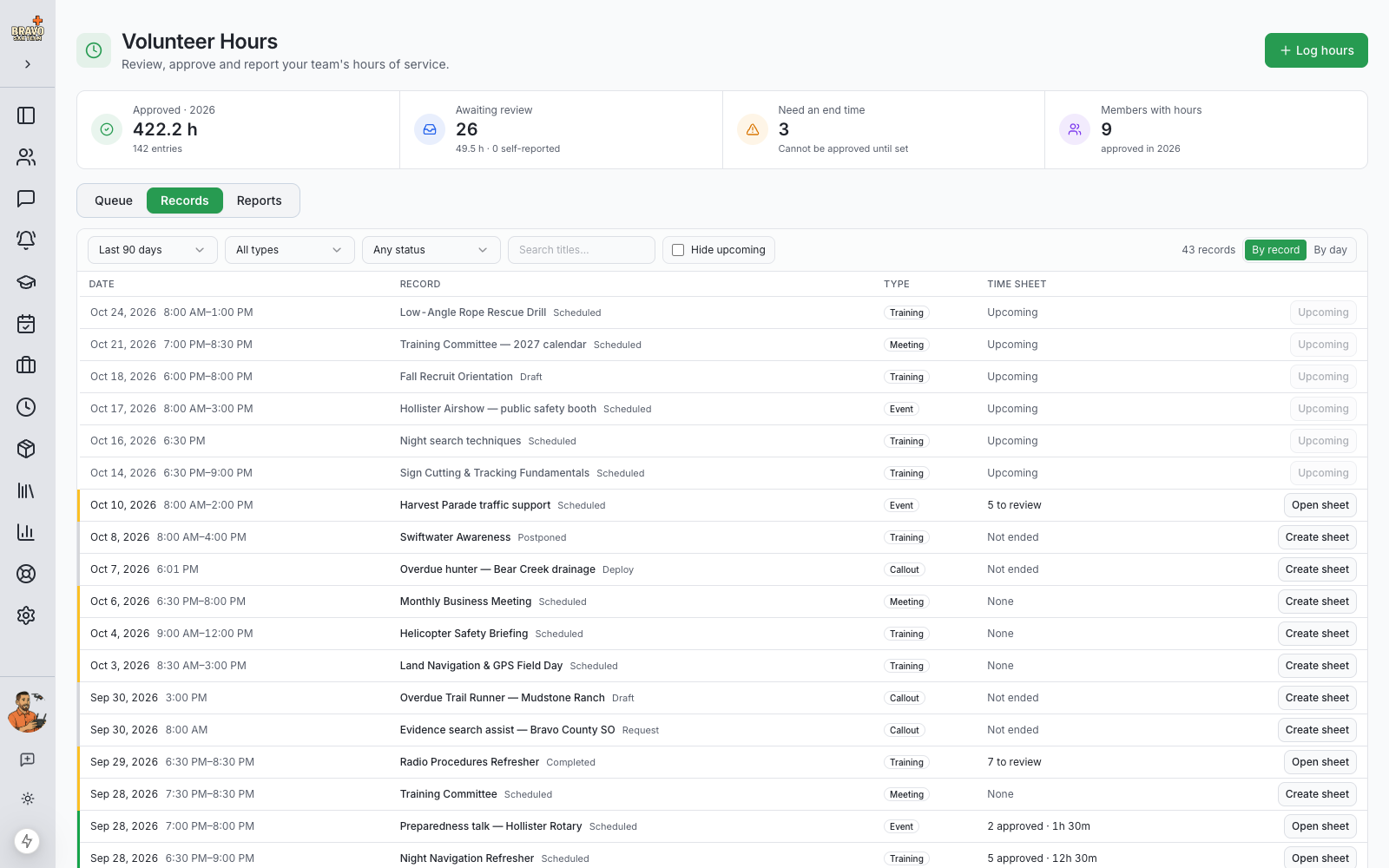
A time sheet is just the hours for one training, callout, event or meeting, one row per member. On the record page itself the Volunteer hours card shows where the sheet stands and opens it. On the Records tab, find the activity and click Create sheet to draft it from confirmed attendance, or Open sheet if it already exists. In Prefill mode the sheet is usually already waiting for you.
The coloured rail on the left of each record answers "is this one done?": green is fully approved, amber has rows to review or an ended record with no sheet yet, grey has not happened yet. Use the status filter and the title search to find a sheet you approved weeks ago.
Callouts have no scheduled end, so a member's row runs from when they marked themselves Responding to when they were dismissed. A row that never got an end time is flagged "needs end" and cannot be approved until you set one.
Edit the sheet
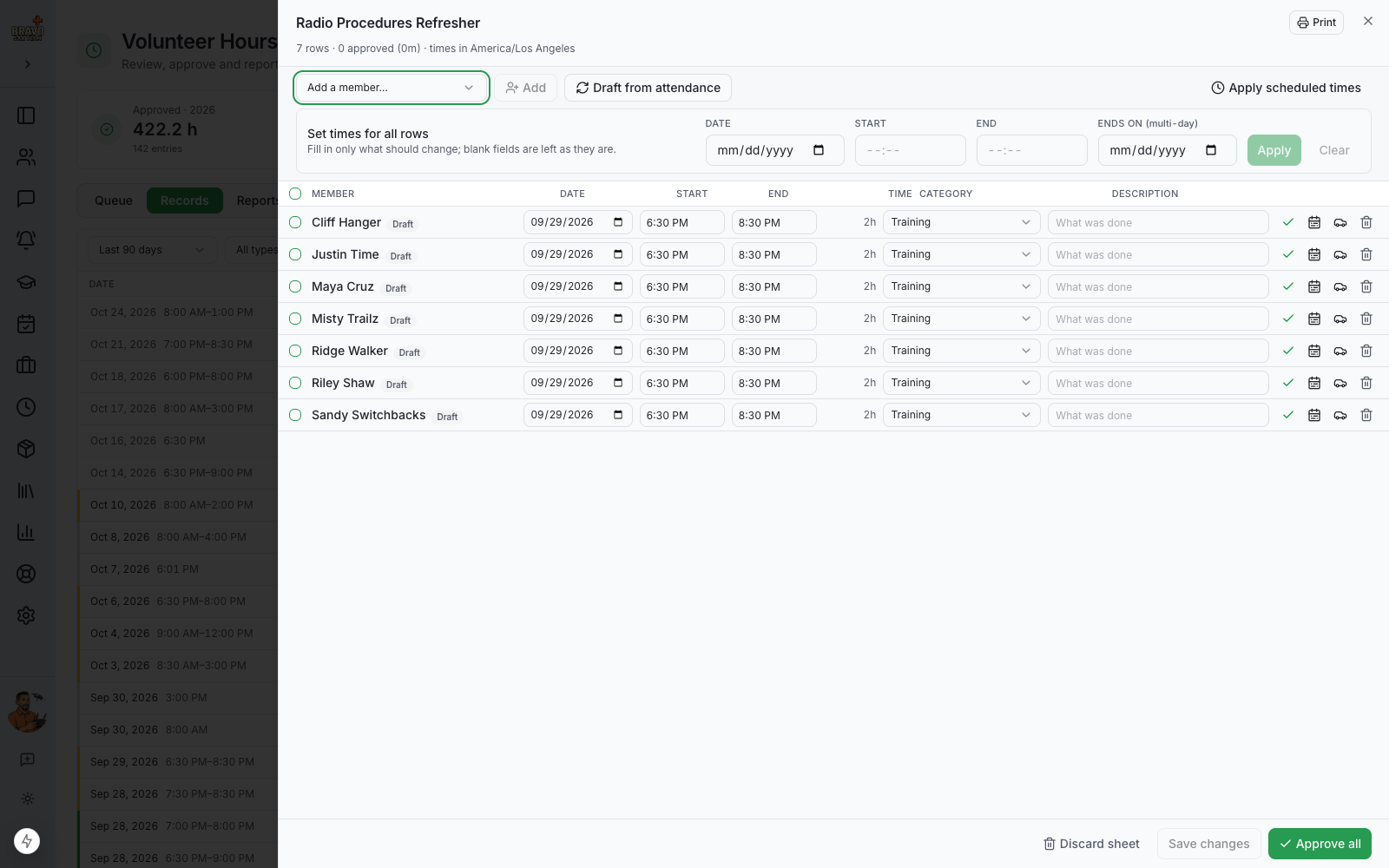
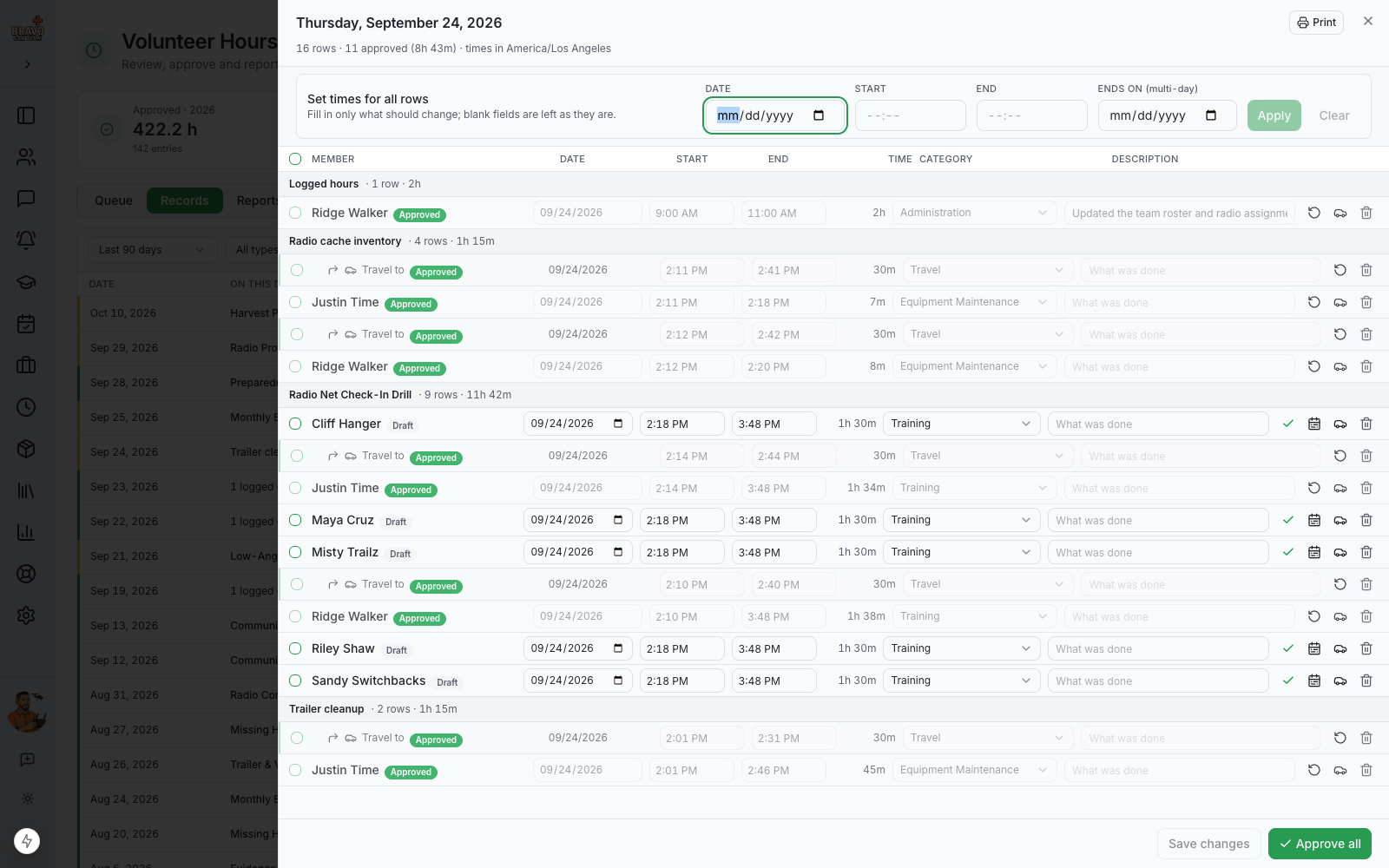
Open sheet slides the editor in from the right: one line per member with date, start, end, the computed time, a category and a description. Change anything, then Save changes. Edits are kept locally until you save, and approving a row saves its edits first so an approval never lands on stale numbers.
- Times accept whatever is on the paper sign-in sheet: 1730, 17:30, 530p and 5:30 PM all work. Tab out and the box shows the time in 12-hour form.
- Set times for all rows applies one date, start, end or end date to every ticked row, or to every unapproved row when nothing is ticked. Fill in only what should change; blank boxes leave rows as they are.
- Apply scheduled times resets rows to the record's schedule, per shift where the row came from one.
- Add a member adds a walk-in who never RSVP'd. Draft from attendance pulls in anyone attendance now implies who is not on the sheet yet.
- The icons at the end of a row: approve the row, mark it as ending on a later day (an overnight search), add a travel line, or delete it.
- An end earlier than the start is read as the next day, so an 18:00 to 02:00 callout needs no extra date. A multi-day exercise gets its Ends on date set explicitly.
- Discard sheet deletes every unapproved row at once, the answer to "this was not an official event".
Add travel lines
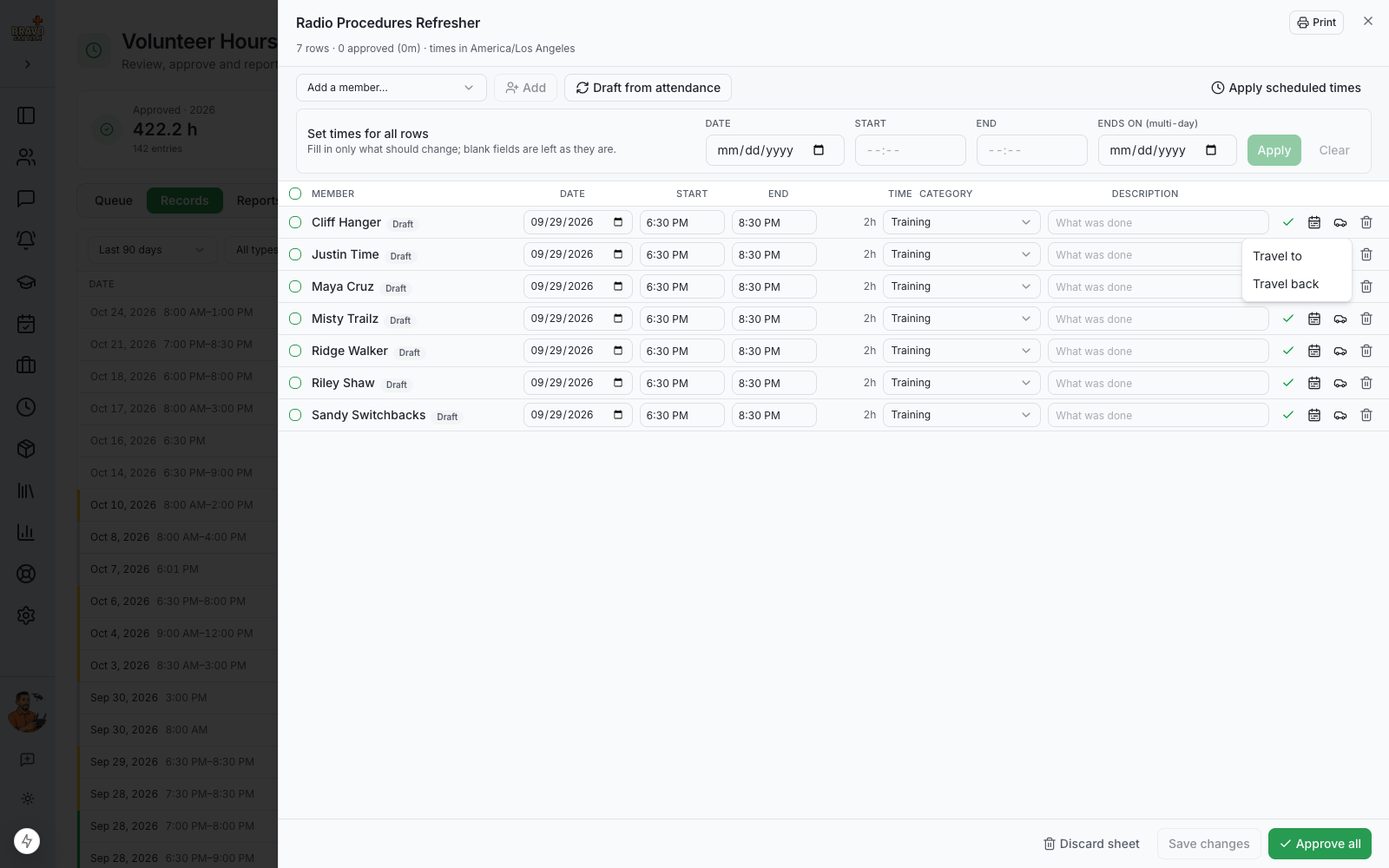
With travel time on, the car icon on any row adds the travel line: one Travel line on a single-line team, or Travel to and Travel back on a team that counts each way. Travel lines sit indented under the member's activity line, in the order travel to, activity, travel back, and are counted under the travel category you chose in settings.
A travel line follows the activity line's date. If a team flies in the day before, click the date on the travel line to move it to another day; a line moved that way stays where you put it. A travel line you delete stays deleted when the sheet is re-drafted.
Travel lines only appear when a team admin has switched on Track travel time under Admin Settings, Volunteer Hours. Teams that do not count travel never see them.
Let members check themselves in
On the Self check-in rung, every training, event and meeting in the mobile app gets a big Check in button that opens two hours before the start and a Check out button afterwards. On a callout the Arrived response is the check-in, so only Check out is added. Each tap is stamped by the server clock, never the phone, and a member can only record one in and one out per activity.
Post a check-in code where members walk in. Print one for the whole team, or one per saved location so the sheet also shows where someone checked in. A member taps their photo in the app's header and chooses Scan to check in, or points the phone camera at it, and gets a list of what is on today with the same buttons; on a laptop the code opens the same page in the browser. Checking in also marks the member as attending.
Nothing scheduled? A member who scans can name what is happening, pick a category and check in. The next member to scan sees that session and joins with one tap. When the starter ends it, or at midnight, it drafts a time sheet like any training.
Check-ins are never hours by themselves. The time sheet shows "Checked in 9:02 · out 12:30" beside each member with a one-click Use these times, and the approver still reviews every row.
Review, approve, return
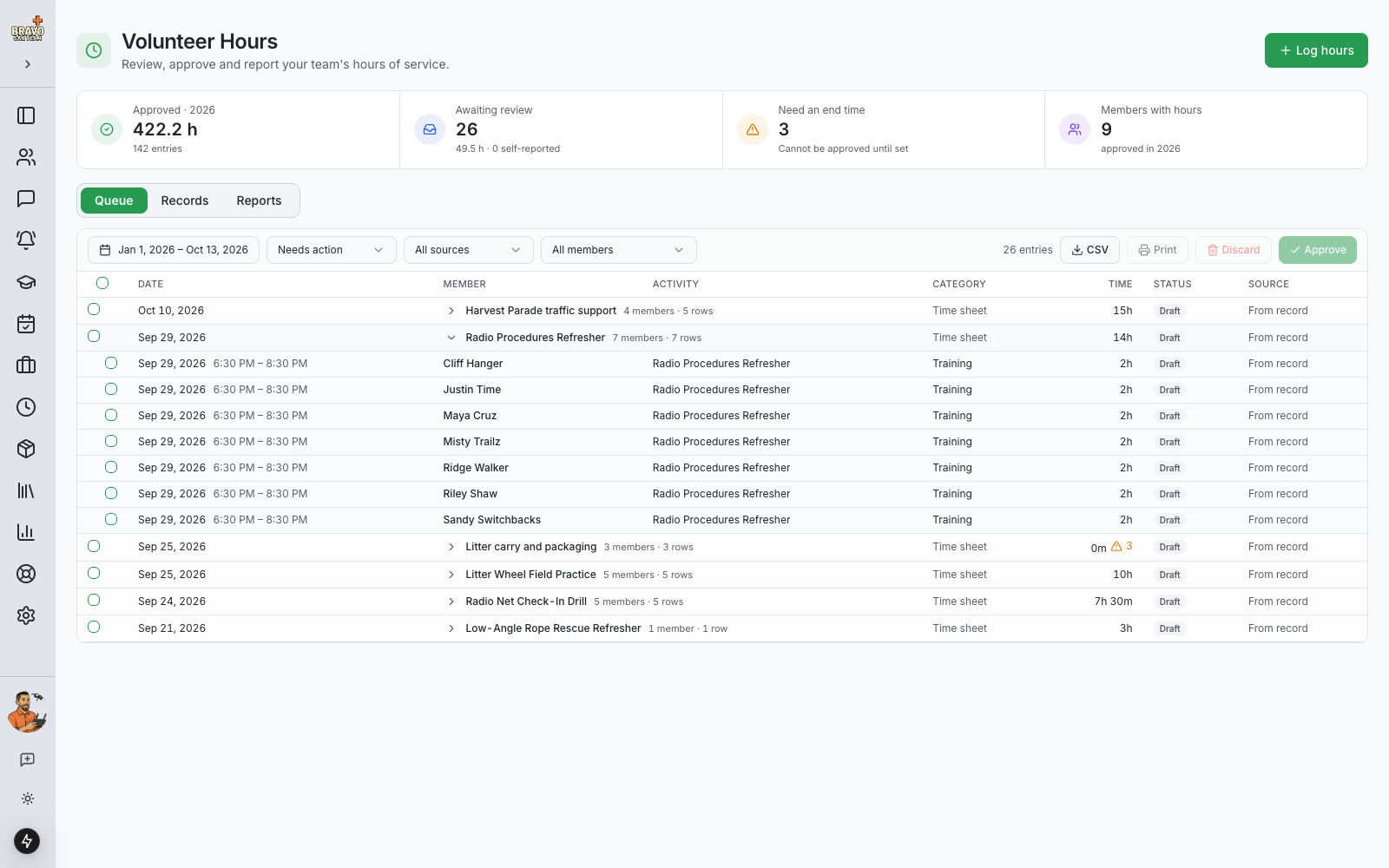
The Queue tab lists everything that needs a decision, grouped by time sheet. Expand a sheet to see its rows, tick the ones you have checked and click Approve, or tick the group to approve the whole sheet in one write. Click a row to open it in the editor and fix it first.
Hours a member submitted themselves can be returned with a note: the member sees it on their profile, fixes the entry and resubmits. Drafts from records are yours to edit directly, so they are simply corrected and approved.
Made a mistake after approving? Reopen the row in the editor, correct it and approve again. Every change is kept on the entry, so there is always a record of who logged, approved or changed what and when.
Only approved hours are ever counted, in reports, on profiles and on the public widget. Drafts and submissions are visible to approvers but never add up to anything.
Log hours for members
Click Log hours at the top of Volunteer Hours for work that has no record in SAR21, or to catch up history from an old paper sheet. Pick everyone on the sign-in sheet, set the date, category and what was done, and give each person their own start and end if they arrived and left at different times. Approve now is ticked by default, because the person typing it is the person who would approve it.
Let members log their own
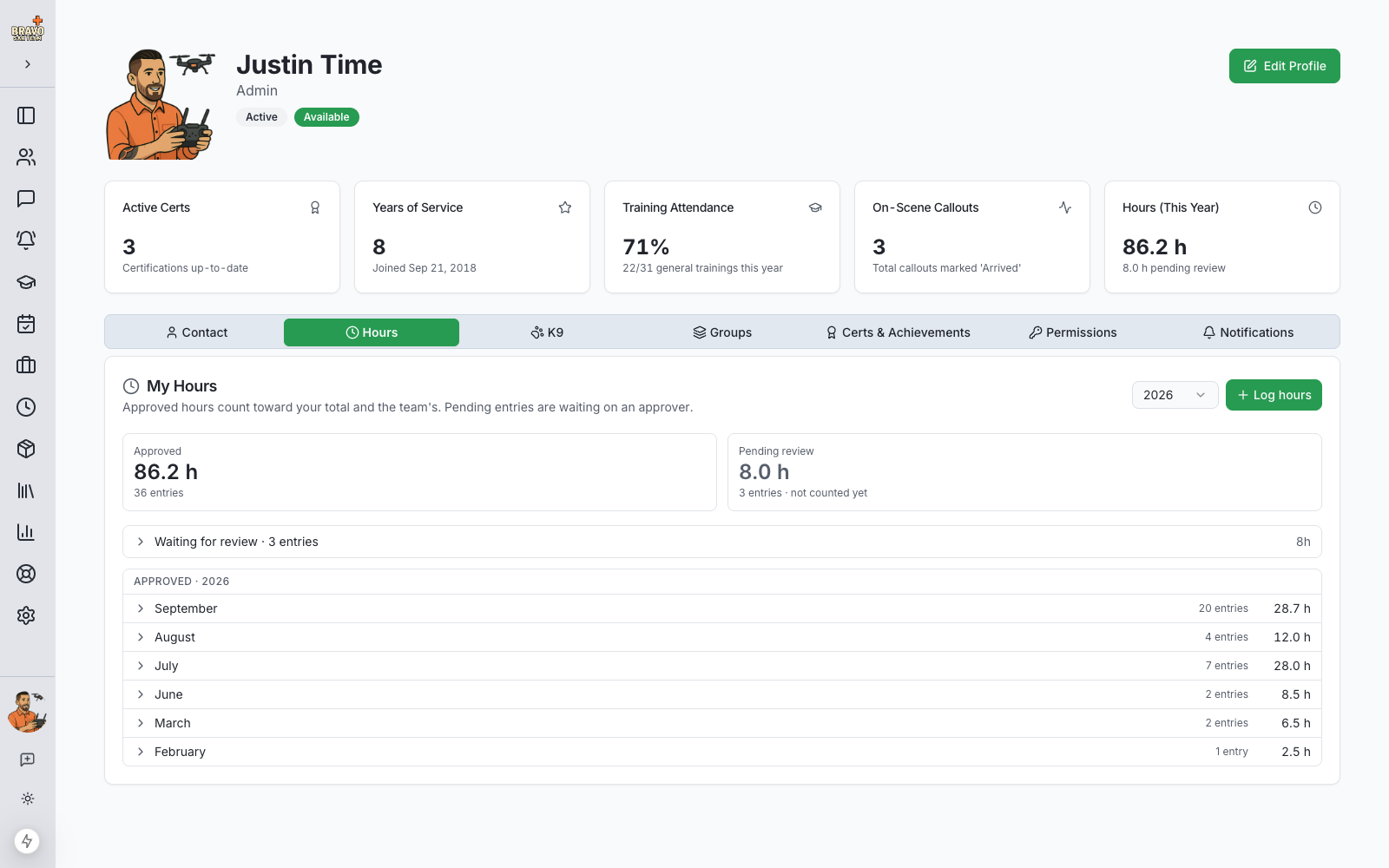
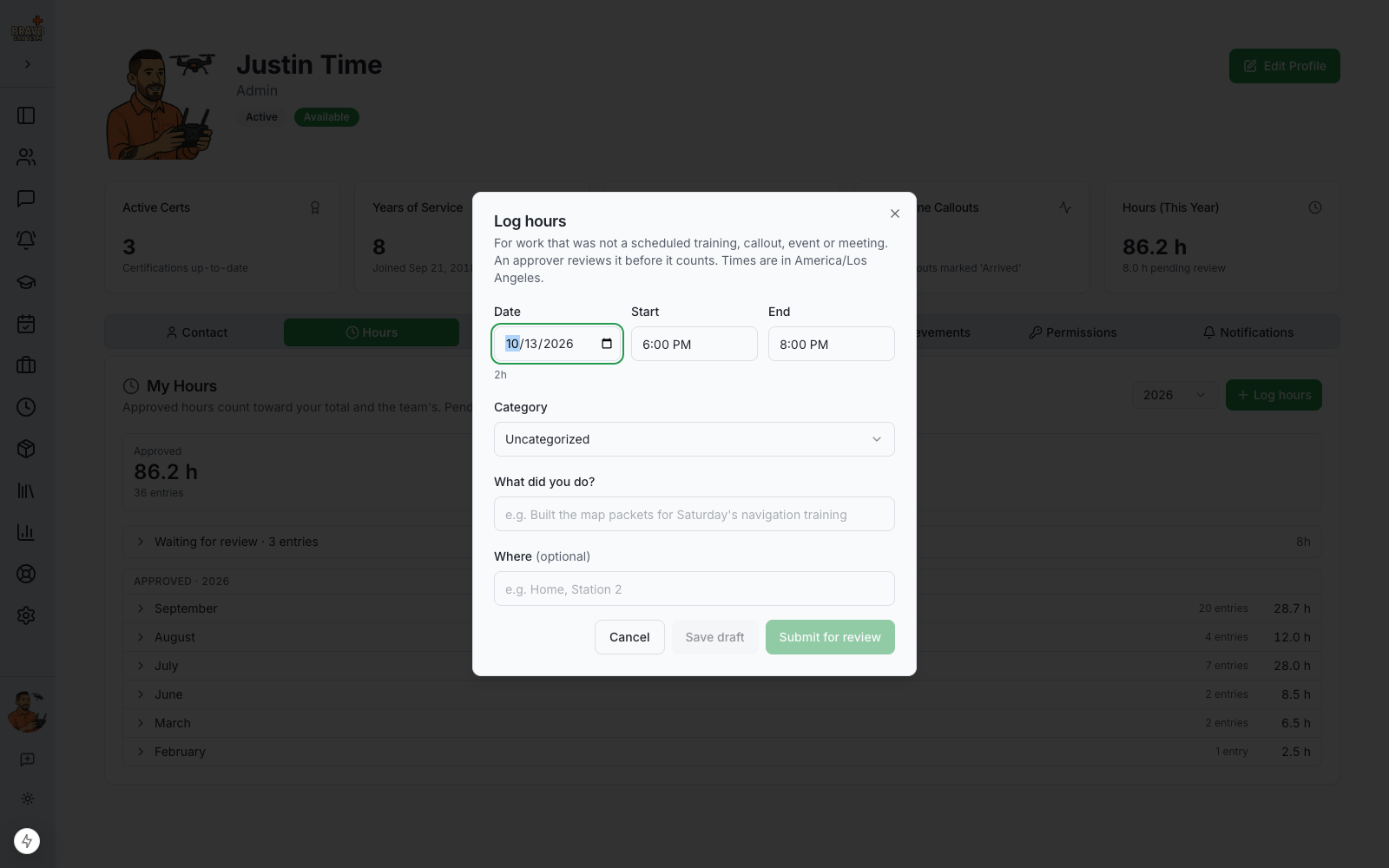
With Members may self-report hours on, a member opens the Hours tab on their profile. It shows their approved total for the year, what is still pending review, and every approved entry by month. Log hours asks for the date, times, a self-reportable category and a short description of what they did. Save draft keeps it private; Submit for review sends it to the queue.
Approved hours count toward the member's Hours (This Year) tile; pending hours are shown separately so nobody mistakes them for approved.
Work a whole day at once
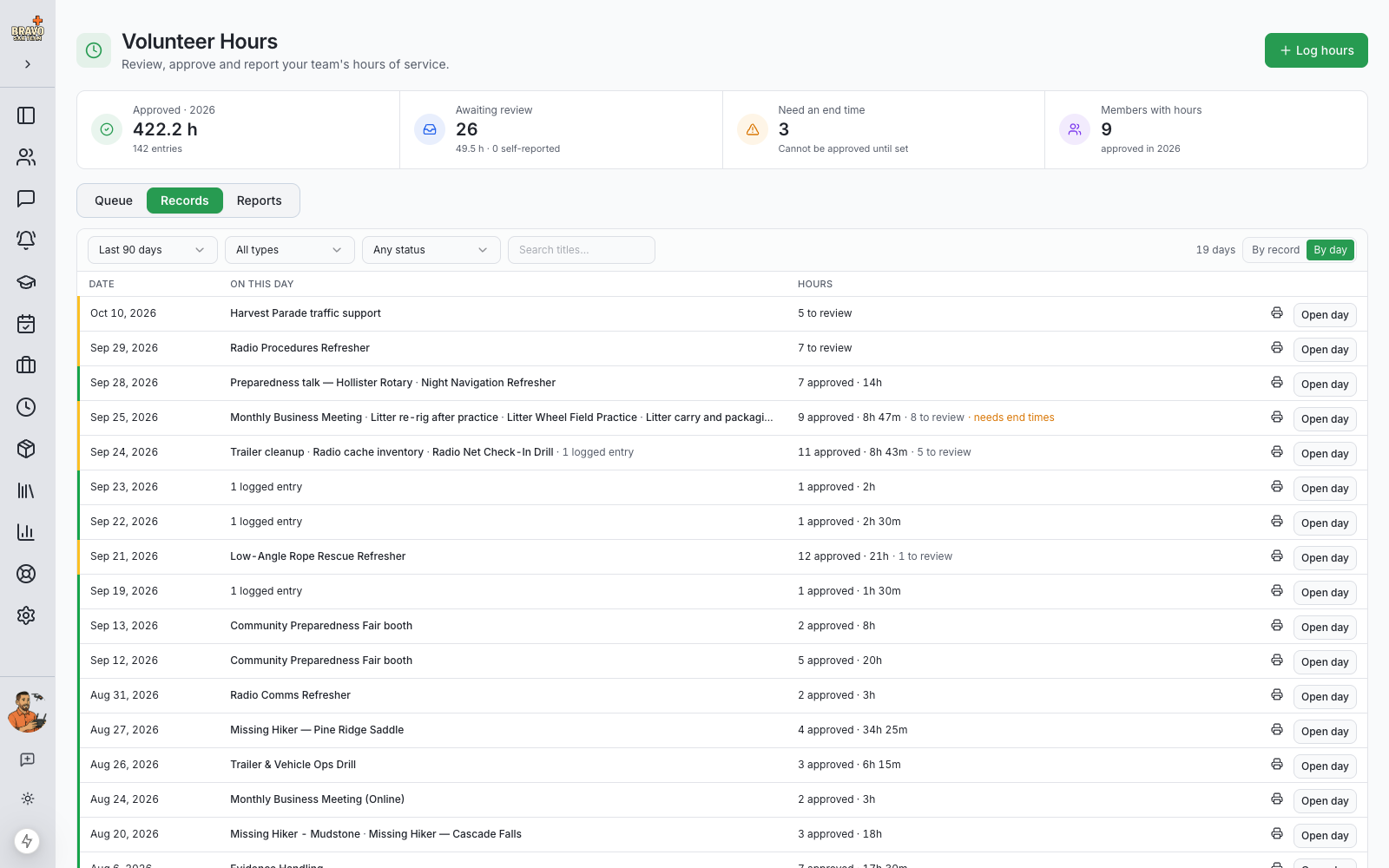
Switch the Records tab to By day and every date with hours gets one line: the trainings, callouts, events and ad hoc sessions that day, plus any hours members logged on their own, with approved and to-review counts. Open day opens the editor on everything for that date, grouped by activity, so a training and three self-logged entries from the same Saturday are reviewed and approved together.
Nothing is moved or re-keyed by this view. A self-logged row is still a self-logged row, and each record keeps its own sheet; By day is just a second way of looking at the same hours.
Print a time sheet
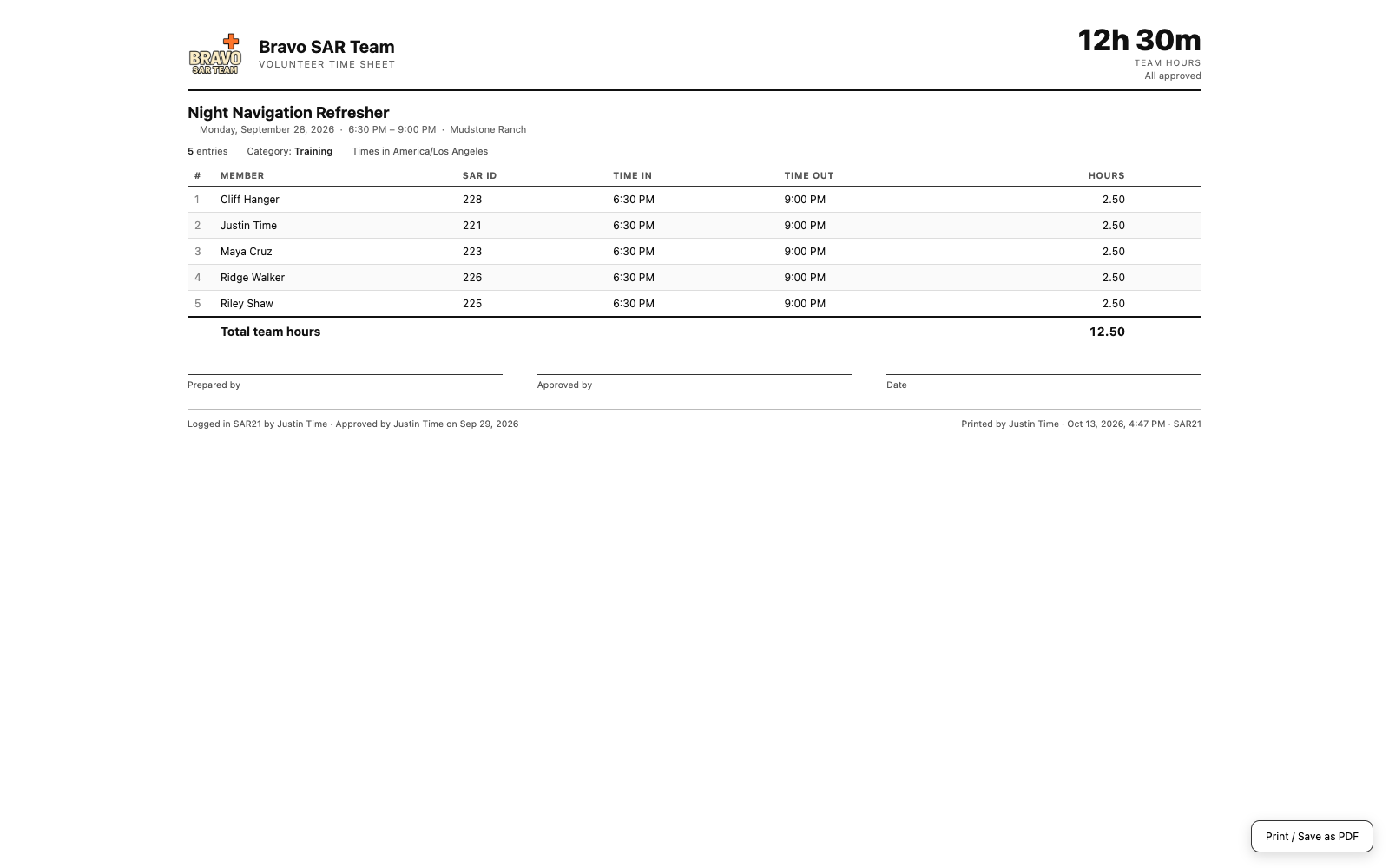
Every sheet has a Print button that opens the paper form in a new tab, ready for the browser's print dialog or Save as PDF: your logo, the activity, its date, time and place, one line per member with SAR ID, time in and time out, the team total, and sign-off lines for Prepared by and Approved by. Rows not yet approved are marked so the page is honest about its status.
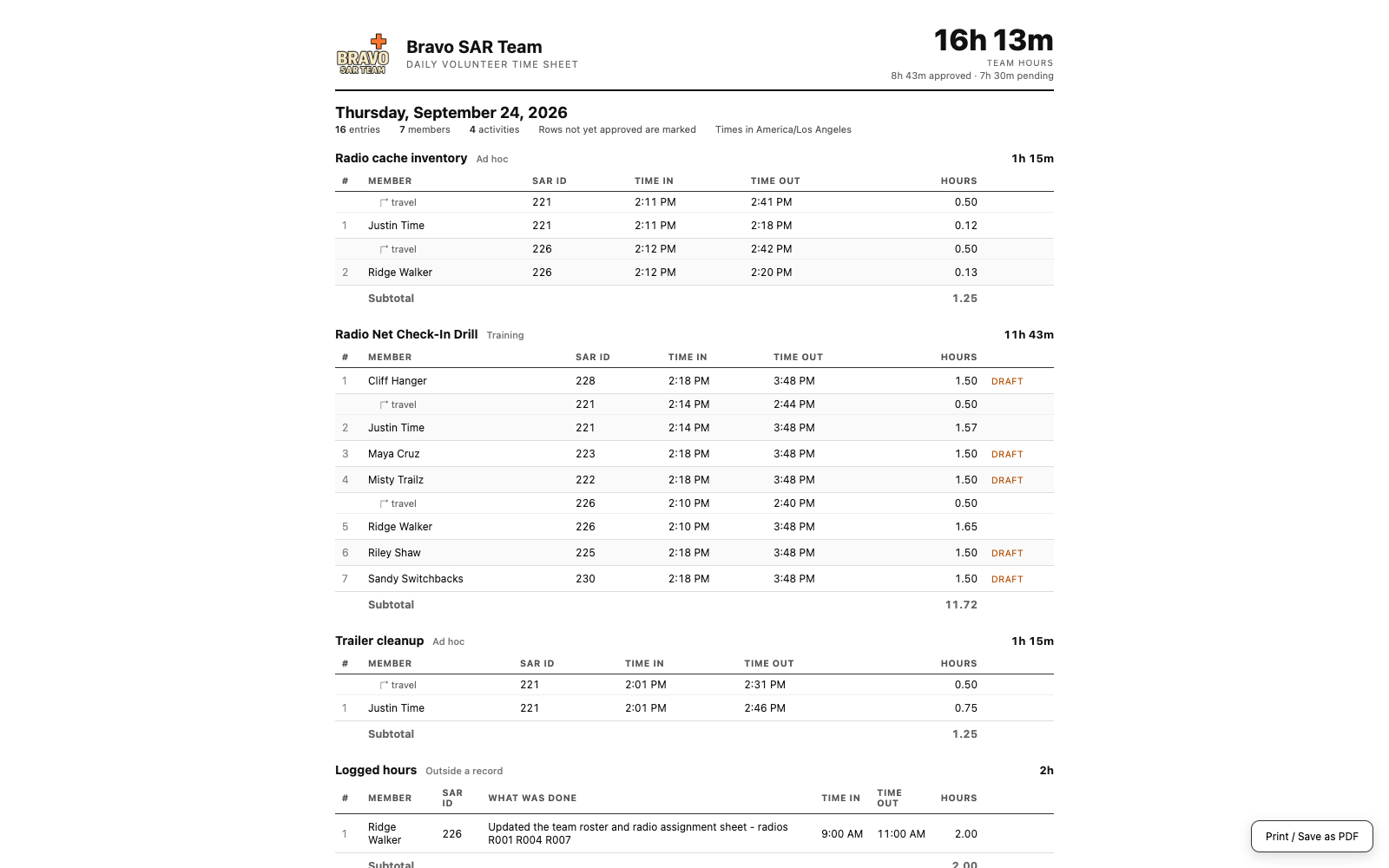
A multi-day exercise prints one page per day, one chosen day, or a summary by member and day. The print icon on a By day line, and Print inside Open day, produce one page for the whole date: each activity with its rows and subtotal, then a Logged hours section with what each entry was, and the day total.
Report on it
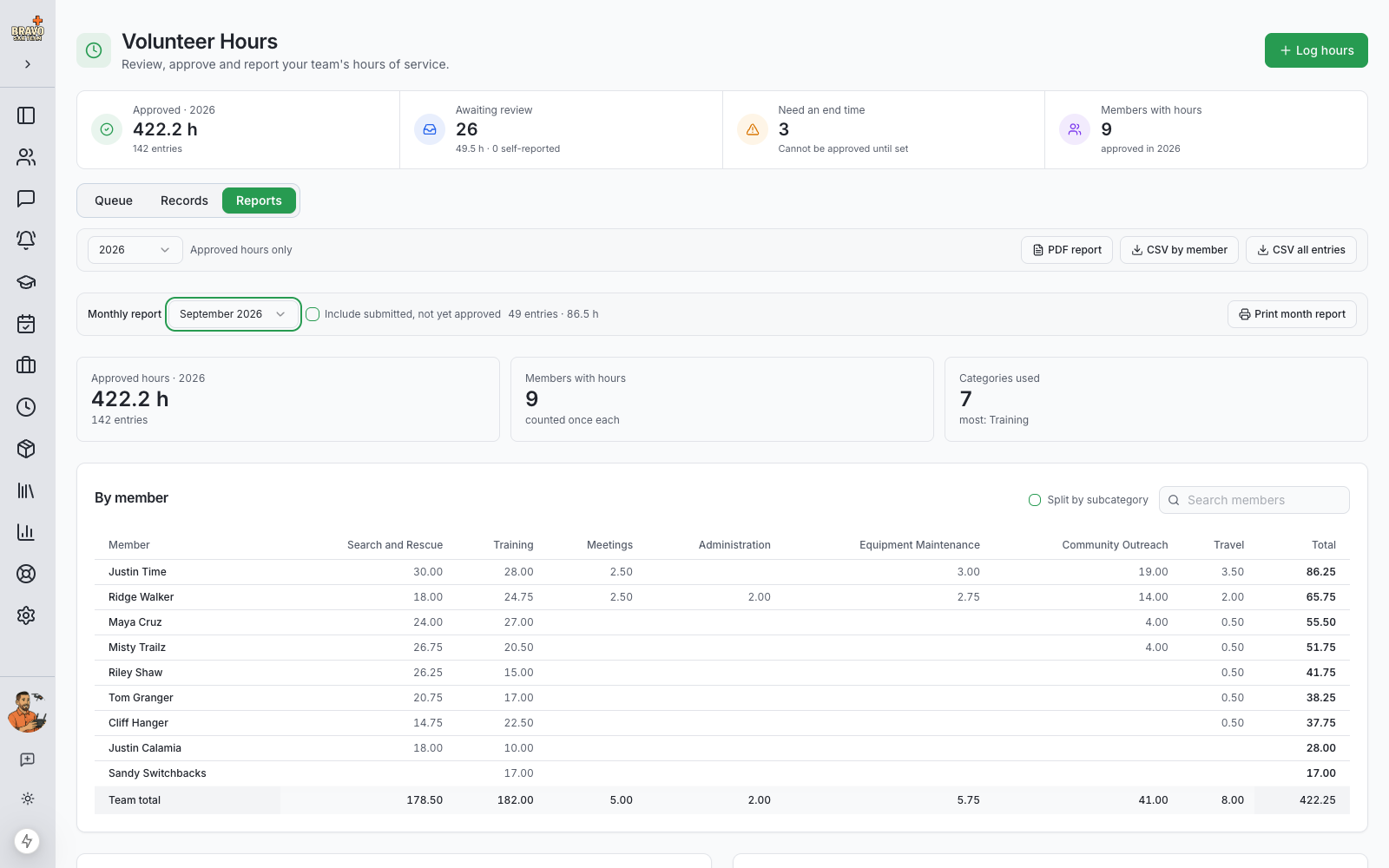
The Reports tab totals approved hours by member, by category, by activity and by month for any year, with subcategories rolled into their parents unless you split them out. Search the member table when your roster is large, then download the year as a PDF for a board packet, a CSV by member, or a CSV of every entry for a grant application.
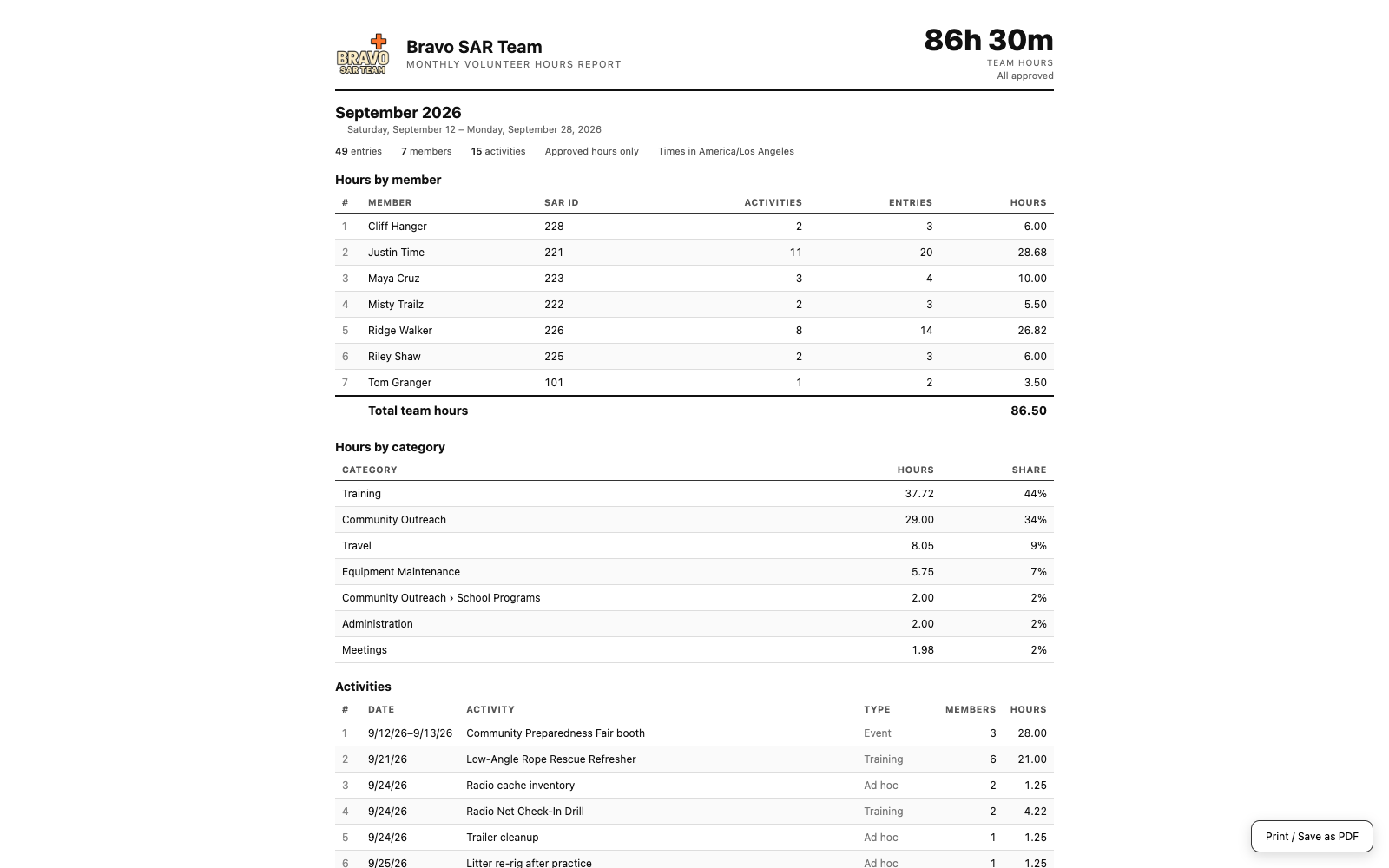
The Monthly report prints one month on paper: hours by member, hours by category, every activity in date order, then each activity's rows with their subtotal and the month total. Tick Include submitted, not yet approved when the agency you report to wants to see what is still pending, marked as such.
Share your hours publicly
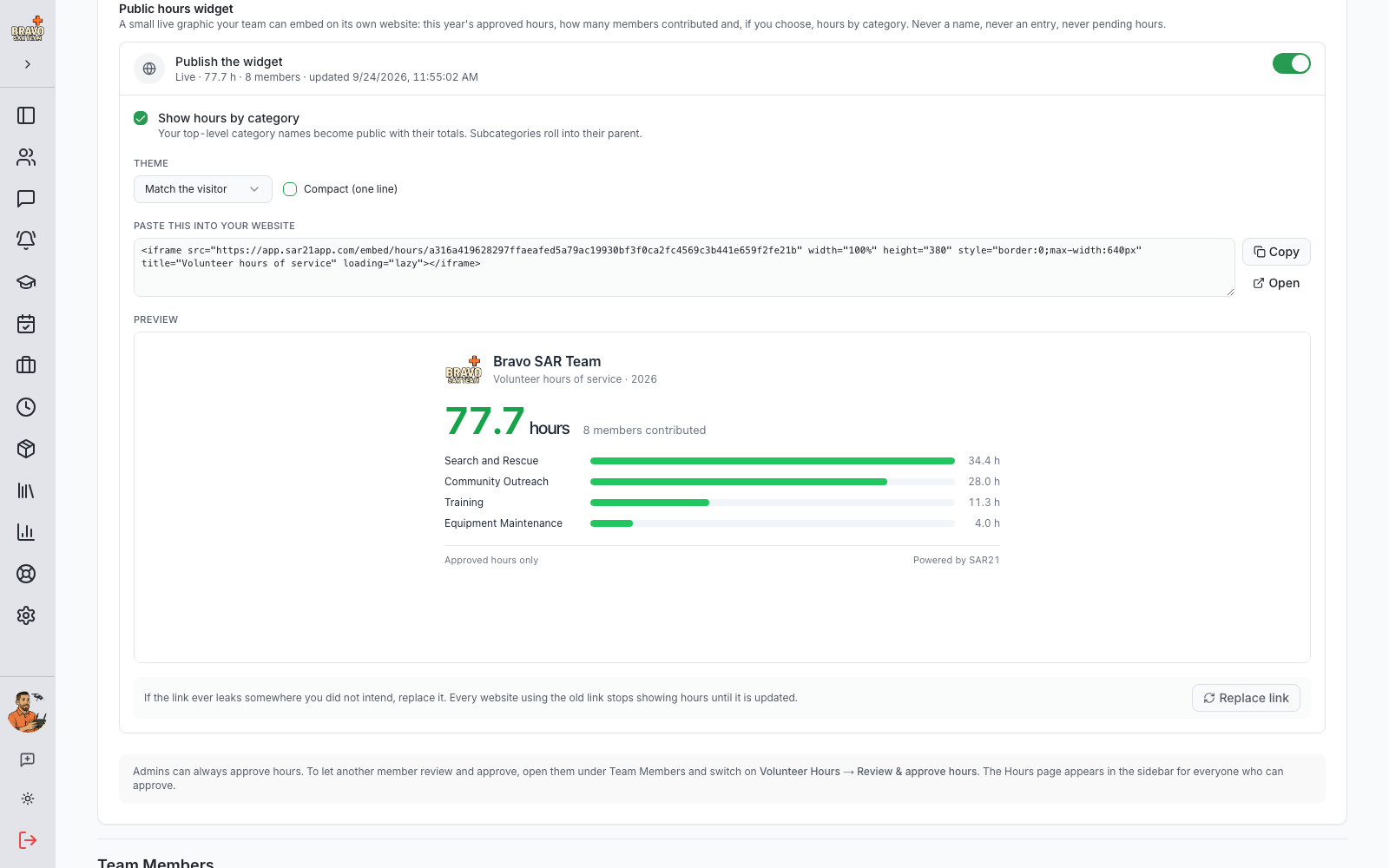
Under Volunteer Hours in Admin Settings, switch on the Public hours widget and paste the snippet into your team website. It shows this year's approved hours, how many members contributed and, if you choose, hours by top-level category, and it updates itself within minutes of each approval. Never a name, never an unapproved hour.
Below is a real one: the Bravo SAR Team demo account's widget, live from their approved hours. If the link ever ends up somewhere you did not intend, Replace link issues a new one and the old embed goes dark.