Track attendance
Members RSVP themselves; admins confirm who actually showed up. Confirmed attendance feeds training percentages and auto-renews linked certifications.
About 5 minutesStep 11 of 23 in team setup
Members RSVP
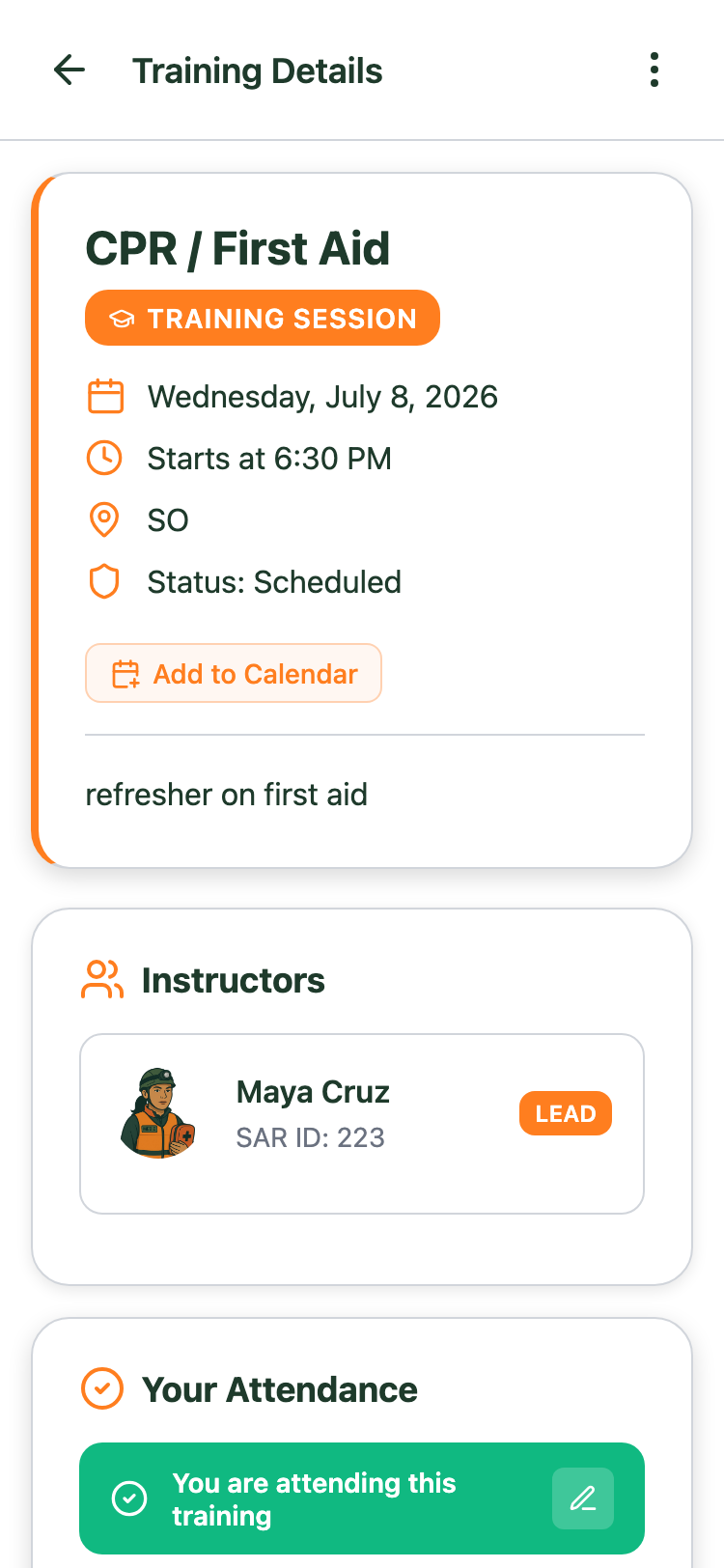
Every member sees upcoming trainings on their dashboard and calendar, with I’m Attending / Not Attending buttons on the training page — one tap on mobile does the same. RSVPs are visible to the whole team, so instructors know their headcount before training night.
Open the Attendance tab
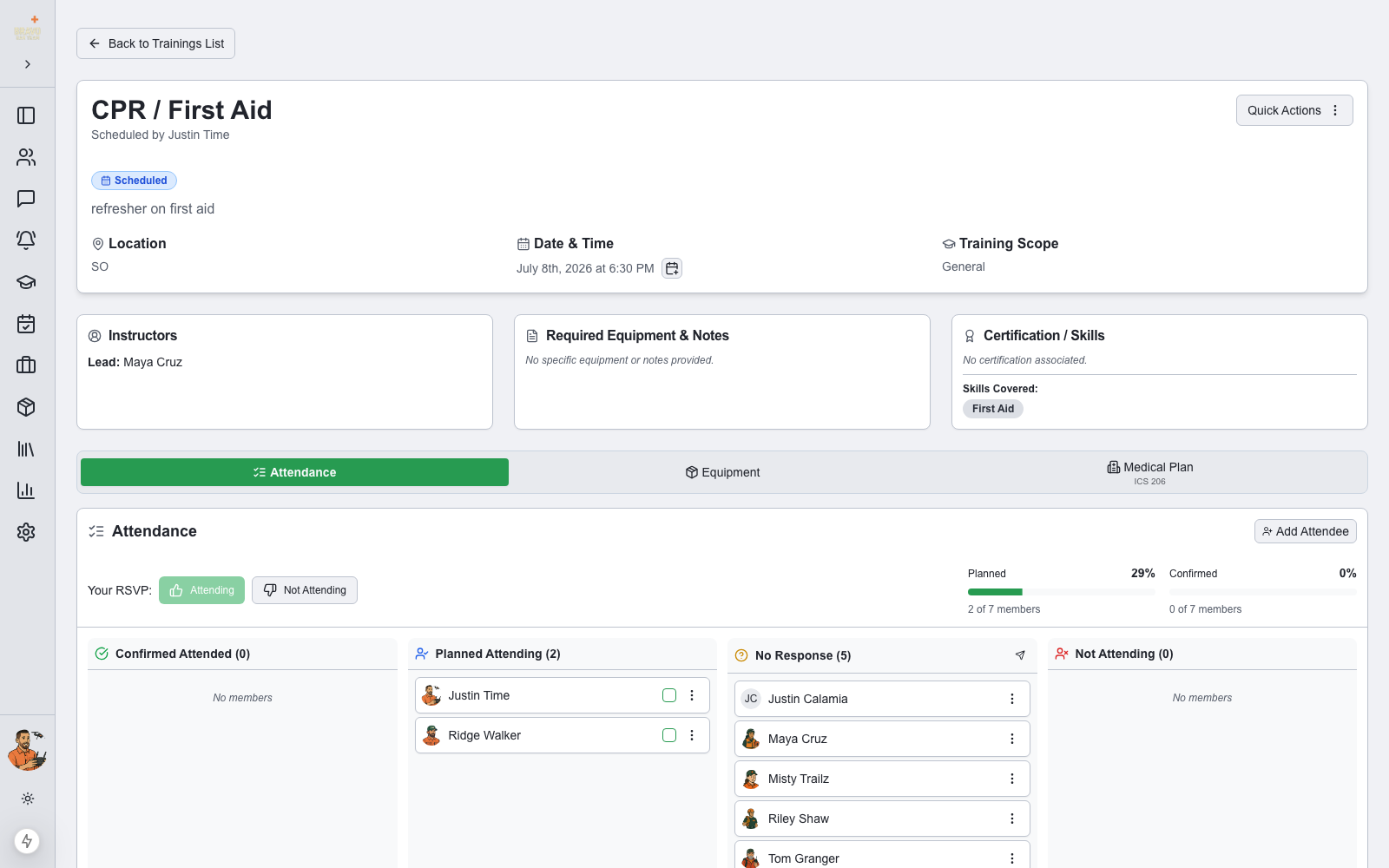
On the training page, the Attendance tab shows the full roster split into columns: Confirmed Attended, Planned Attending, No Response, and Not Attending — with planned and confirmed percentages up top.
Nudge the silent ones
The send icon on the No Response column pushes a reminder notification to everyone who hasn’t answered yet — no group text required.
Confirm who showed up
At the training, check the confirmation box next to each member who’s present (use Add Attendee for walk-ins who never RSVP’d). Confirmed attendance is what counts: it drives each member’s training percentage on the roster, and if the training is linked to a certification with auto-update, confirmed members get their certs renewed when you mark the training complete.