Build teams & search assignments
Once members are responding, the search planner turns a list of names into an organized operation: overhead roles, typed field teams, search areas, briefings, and a running radio log.
About 7 minutesStep 16 of 23 in team setup
Track who’s actually on scene
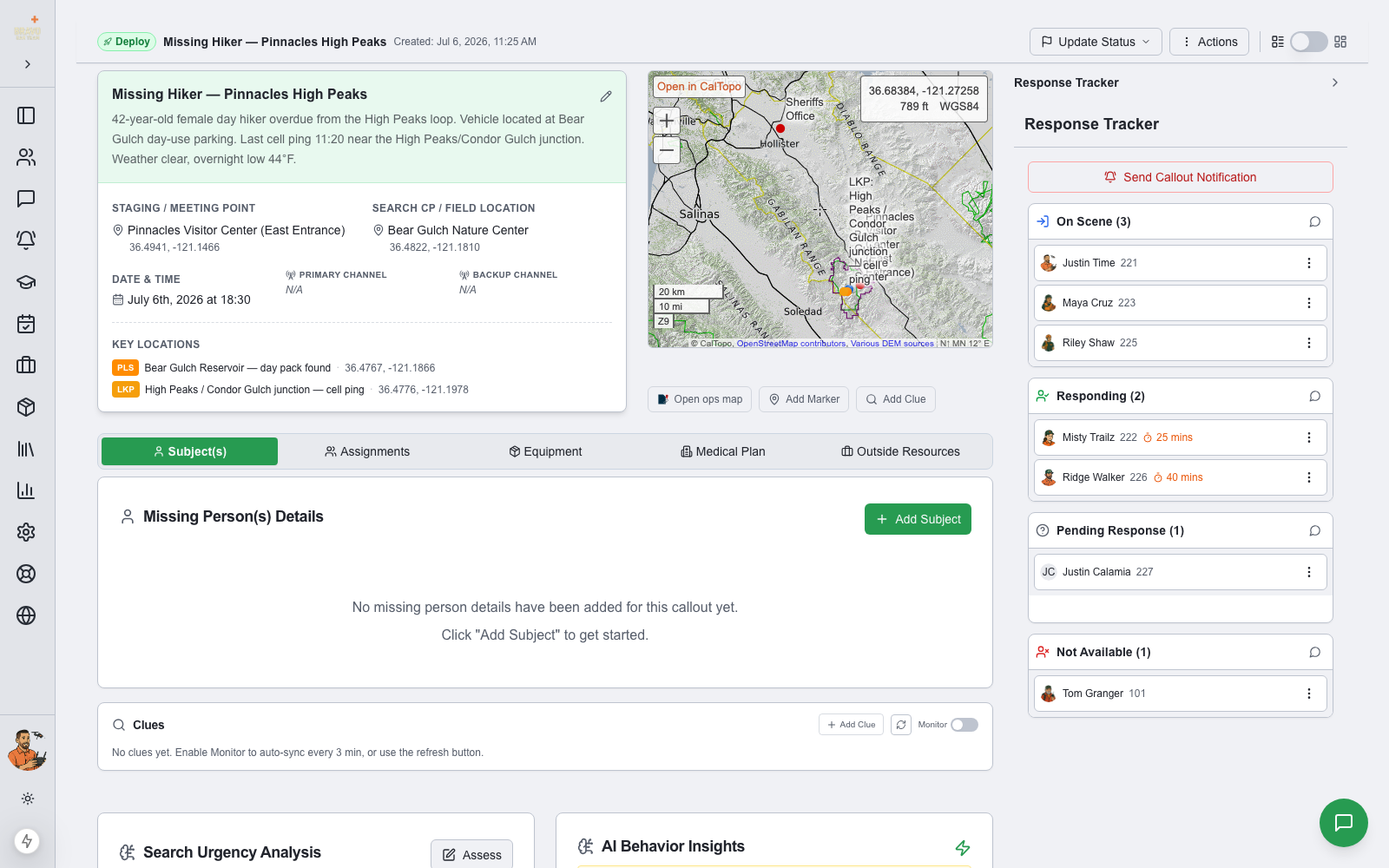
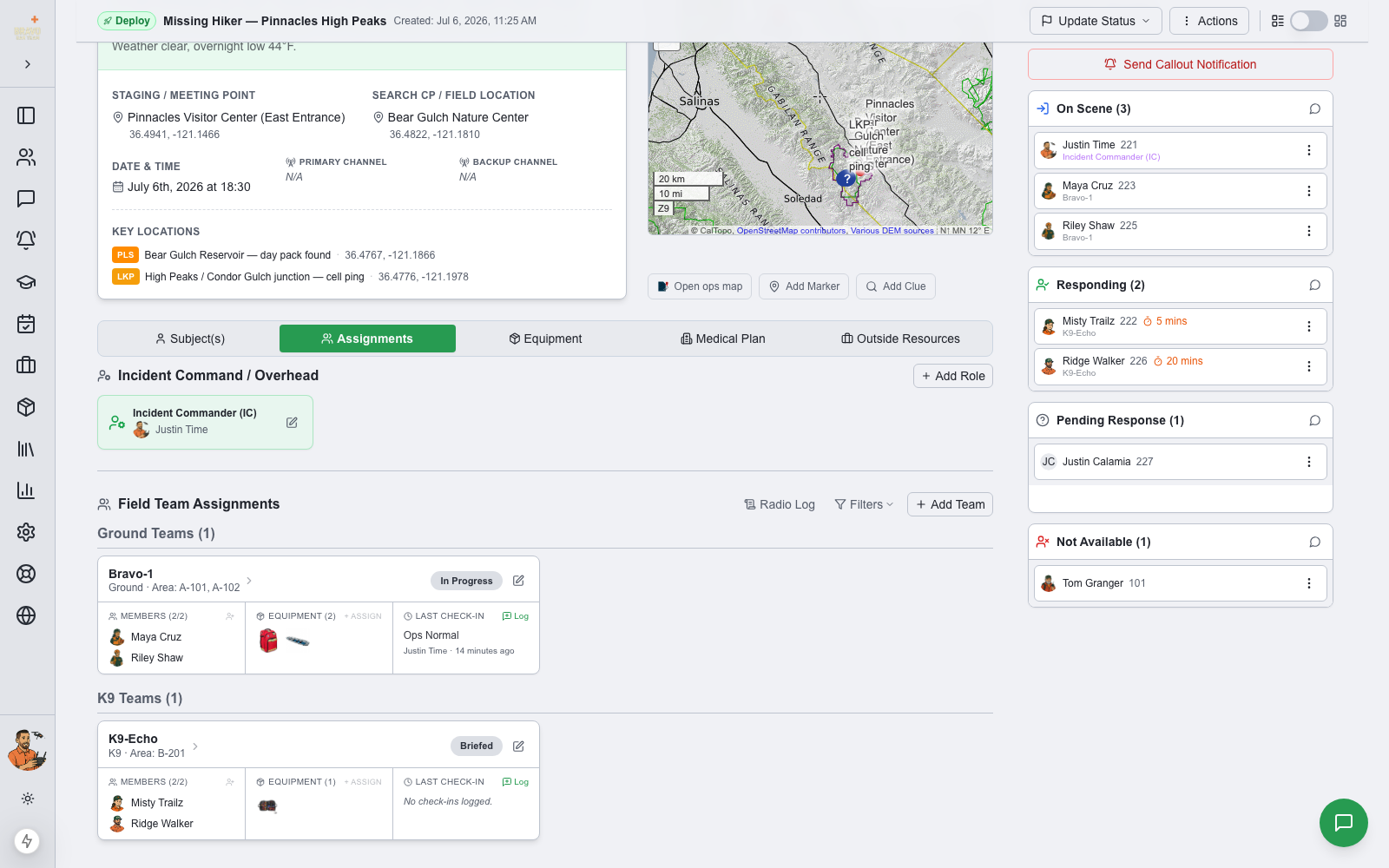
The Response Tracker on the callout page is the planner’s ground truth. Members appear under On Scene, Responding (with live ETA countdowns), Pending Response, and Not Available as they answer the alert — and admins can correct any of it from the ⋮ menu next to a name: Mark Arrived when someone walks into staging without tapping the app, Mark Responding with a manual ETA, or Mark Not Available.
Assign incident command roles
On the Assignments tab, start at the top: Add Role assigns your ICS overhead positions — Incident Commander, Operations, Planning, Logistics, Safety Officer, PIO, Liaison, or any custom role. Once assigned, the role shows under the member’s name everywhere, including the Response Tracker, so everyone knows who’s running the show.
Create field teams
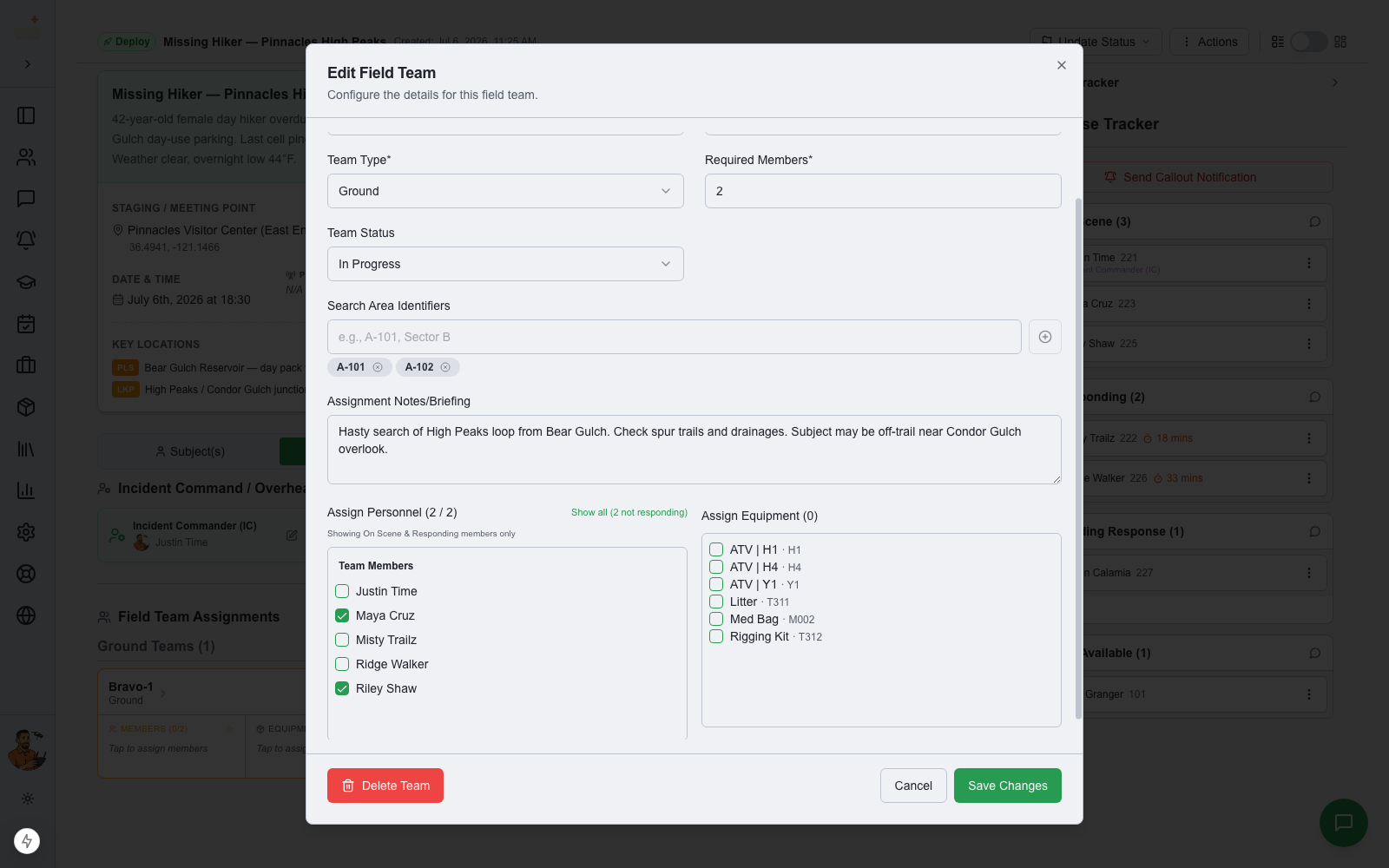
Click Add Team to build a team: name and call sign (Bravo-1 / GT-1), a team type (Ground, K9, ATV, UAV, Tracking, Mounted, Medical and more), how many members it needs, and its status.
Assign search areas as identifiers (A-101, Sector B) straight from your CalTopo area naming, write the briefing into Assignment Notes — objectives, hazards, where to start — and check off personnel. The picker shows On Scene and Responding members first, warns you when someone is already on another team, and flags the team as understaffed until it meets its required count. Equipment checked into the callout can be assigned the same way.
Run the operation from one screen
Teams are grouped by type with everything visible at a glance: status (Pending Briefing → Briefed → Deployed → In Progress → Paused → Completed → Debriefed), assigned areas, members, equipment, and the last radio check-in. Click a status badge to advance a team, or tap members and equipment right on the card to adjust on the fly.
Keep a radio log
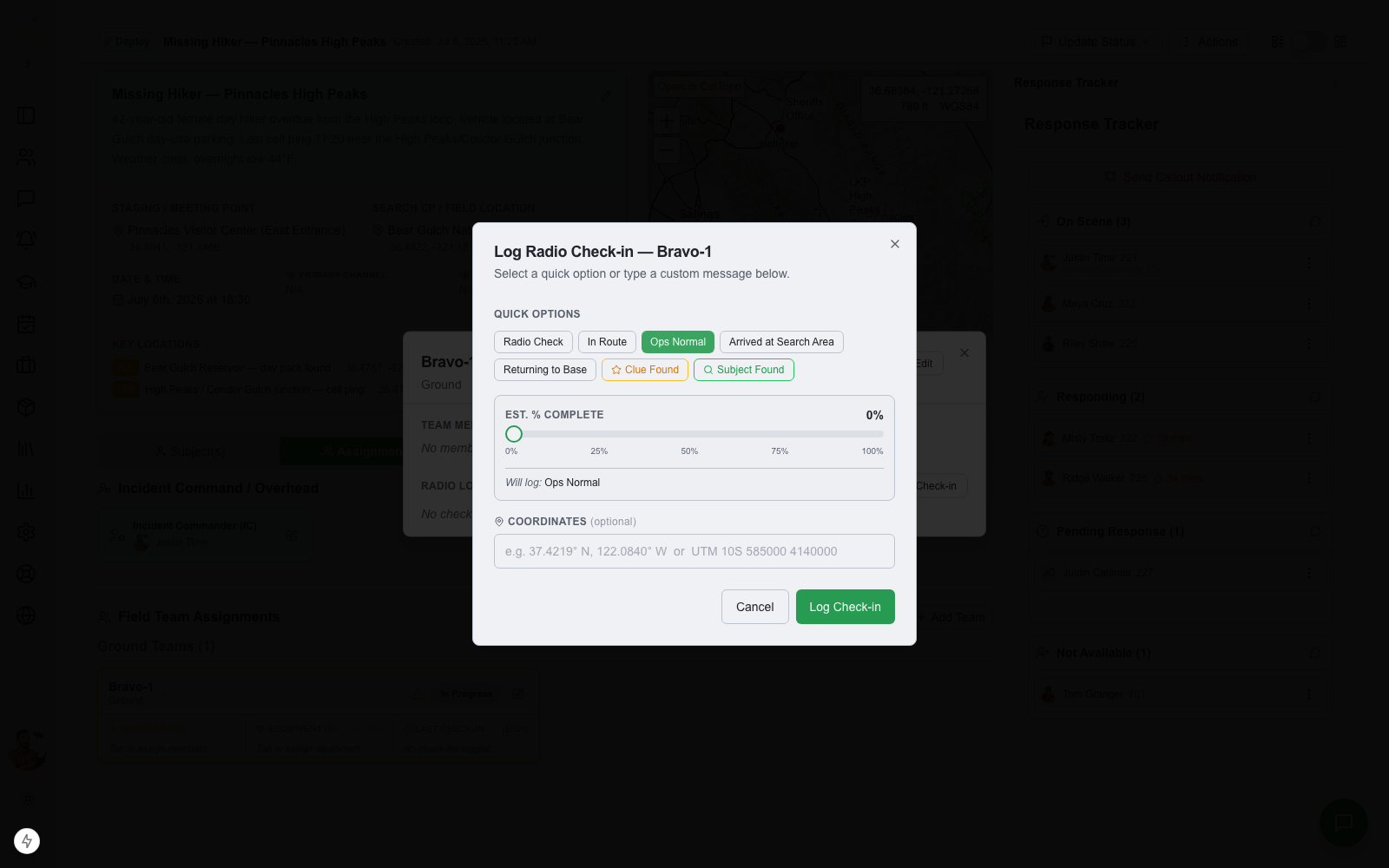
Every team card has a Log button for radio check-ins. Quick options cover the standard traffic — Radio Check, In Route, Ops Normal (with search area and estimated % complete), Arrived at Search Area, Returning to Base, Clue Found, Subject Found — or type a custom message with optional coordinates.
The Radio Log button at the top of the tab shows the combined chronological log across all field teams: a defensible record of the entire operation, timestamped and attributed, without anyone keeping a paper log.
Switch to Command View
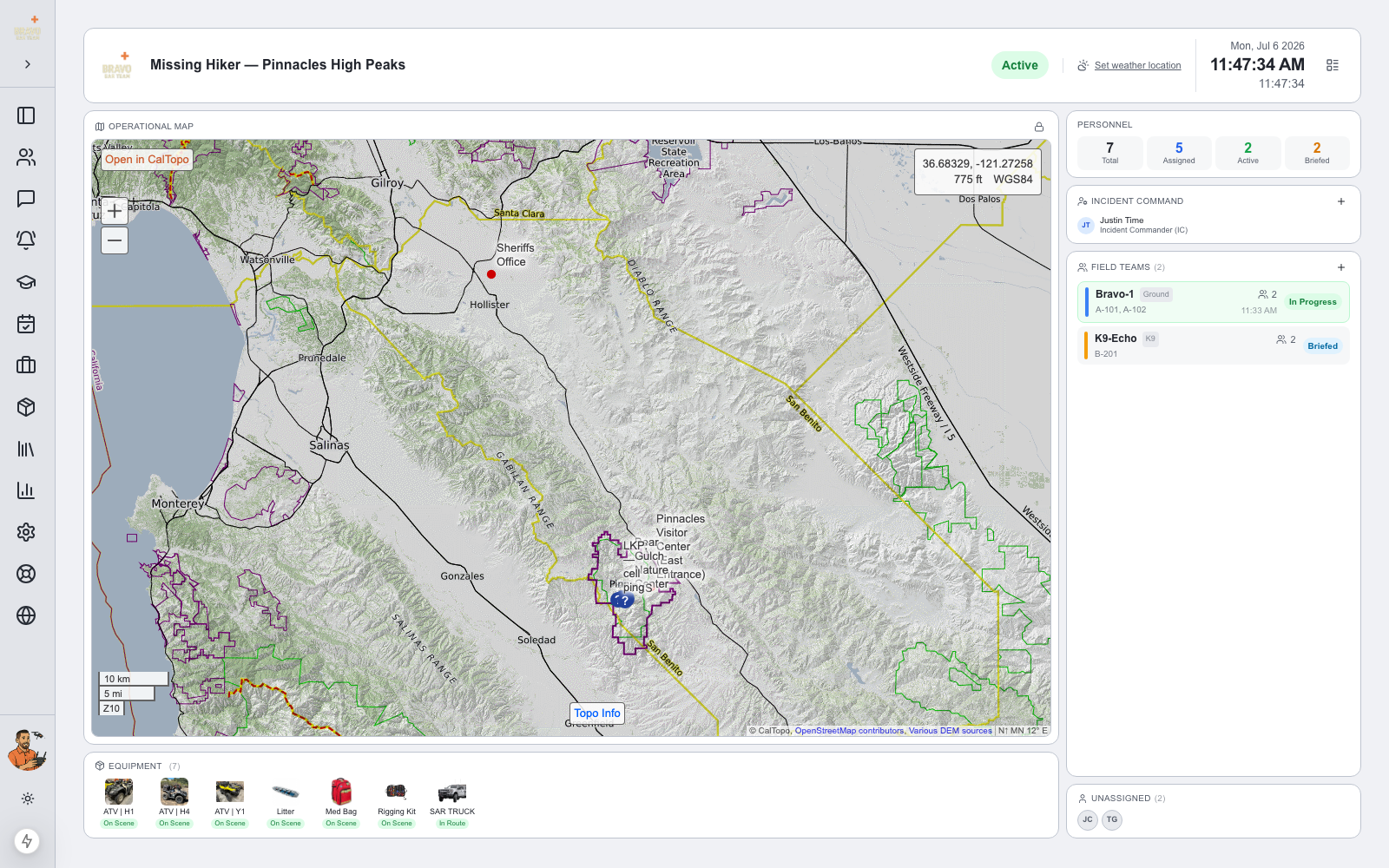
For the command post, flip the view toggle in the top-right corner of the callout page. Command View turns the callout into a wall-screen operations board: mission clock, live personnel counts (total, assigned, active, briefed), incident command, every field team with status and search areas, unassigned personnel, and the equipment strip showing each asset’s stage — On Scene, In Route, and beyond.
The operational map sits front and center, and the whole board updates in real time as teams check in and statuses change — ideal on a second monitor or a projector at the CP.