Give your agency access
Most SAR teams deploy at the request of a sheriff’s office or law enforcement agency. Give those partners their own web portal access — they see team availability at a glance and submit standby or deploy requests that alert your leadership instantly.
About 6 minutesStep 15 of 23 in team setup
Invite your agency contacts
Open Admin Settings and expand the Agency Access section, then click Invite Agency User. Only an email address is required — the deputy or coordinator fills in their name, agency, rank, and contact phone when they set up their account.
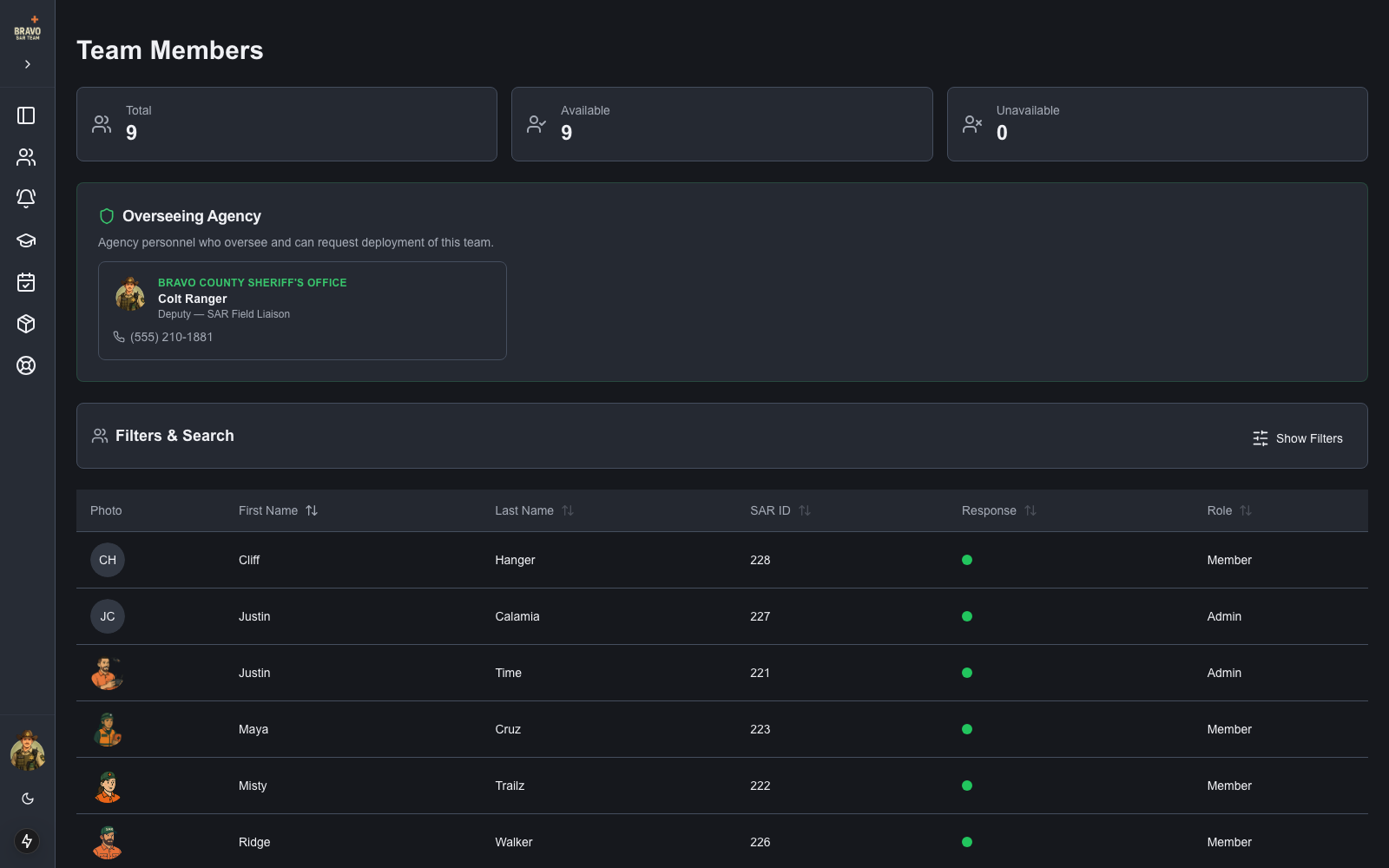
Agency users are separate from your member roster: no SAR ID, no member staging, no mobile-app steps in their invite email. Once they join, they appear in a dedicated "Overseeing Agency" section at the top of your Team Members page — with their contact info one tap away — never mixed into your member list or availability stats.
Configure notifications and visibility
The Agency Access section is also where you control the relationship:
- Callout Request Notifications — pick exactly which members are alerted when an agency submits a request. If you select no one, every Admin is notified.
- Main Point of Contact — designate the agency-side coordinator (for example, the deputy assigned to SAR). They’re highlighted first on the roster with a badge.
- Visible Activities — choose whether agency users see your Trainings and Events. Team meetings are internal and never shown.
Agency permissions are fixed by design — they can view, RSVP to trainings, and submit requests, but they can never dispatch alerts, manage members, or change callout statuses.
What your agency sees
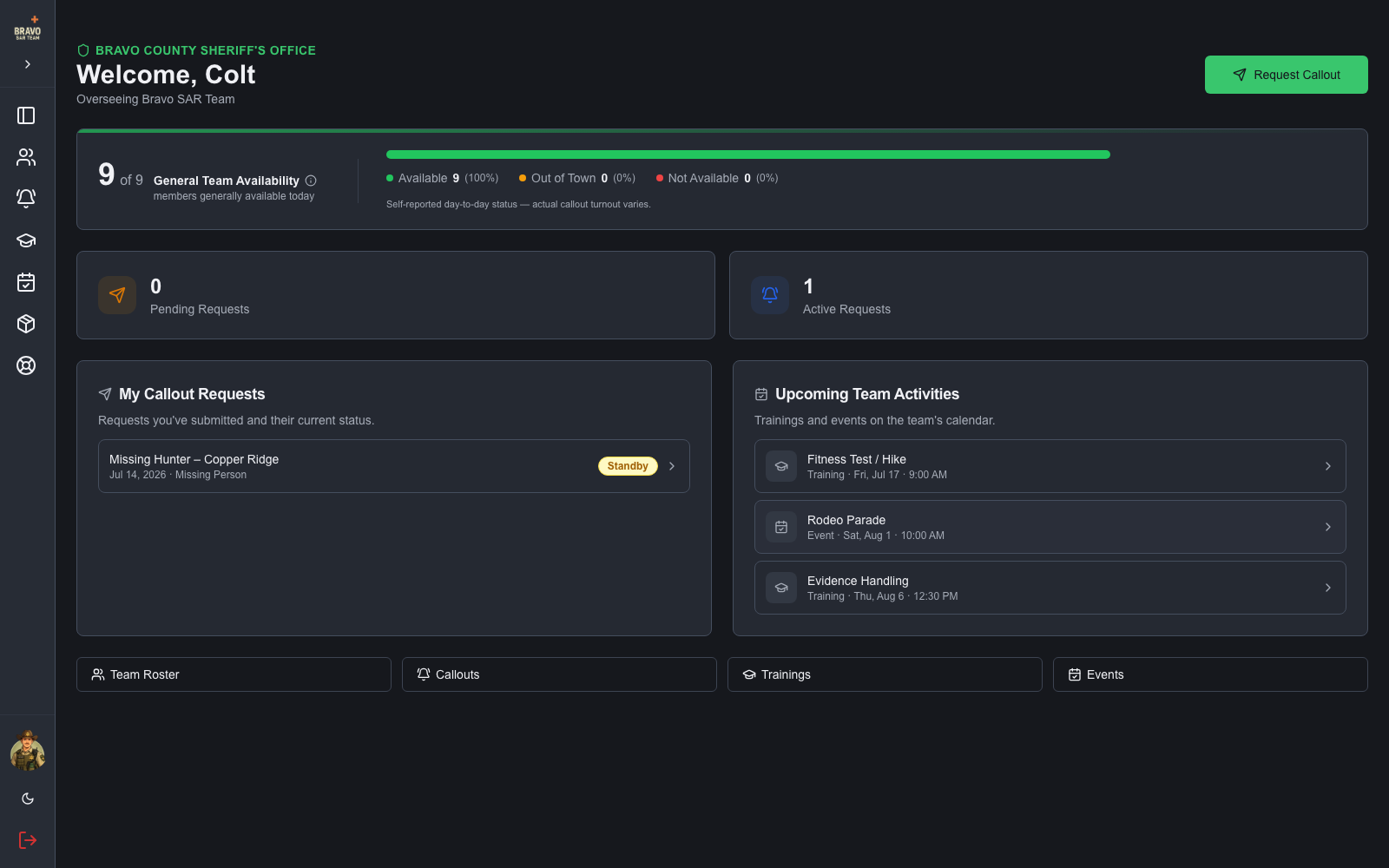
Agency users sign in to a focused web portal built for oversight. Their dashboard leads with General Team Availability — a live snapshot of how many members are generally available, out of town, or unavailable — clearly labeled as day-to-day status, not a per-callout commitment.
They can browse your roster (certifications and positions, but no attendance stats), see upcoming trainings and events and RSVP to trainings, and view your equipment inventory read-only — a picture of the resources your team brings. It works great bookmarked on a phone for on-the-go use.
Submitting a callout request
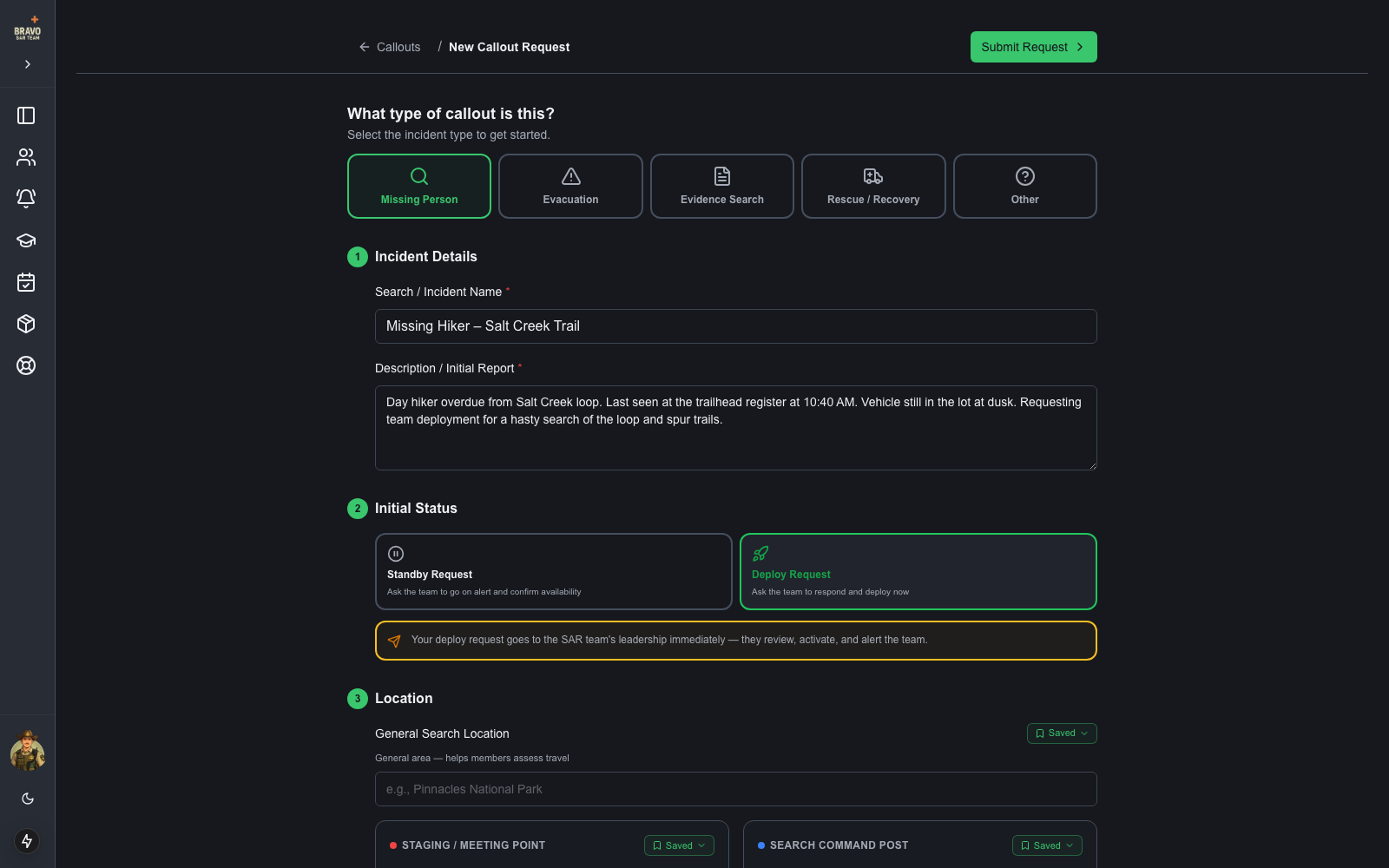
When your agency needs the team, they click Request Callout and fill in the same incident form your members use — title, initial report, staging and command post, PLS/LKP coordinates. Instead of setting a status, they choose what they’re asking for:
- Standby Request — ask the team to go on alert and confirm availability.
- Deploy Request — ask the team to respond now, with an optional "respond by" time.
The moment a request is submitted, your configured members receive a push alert and a detailed email — request summary plus the submitter’s name, rank, agency, and phone — sent server-side so it can never be skipped.
Review, activate, deploy
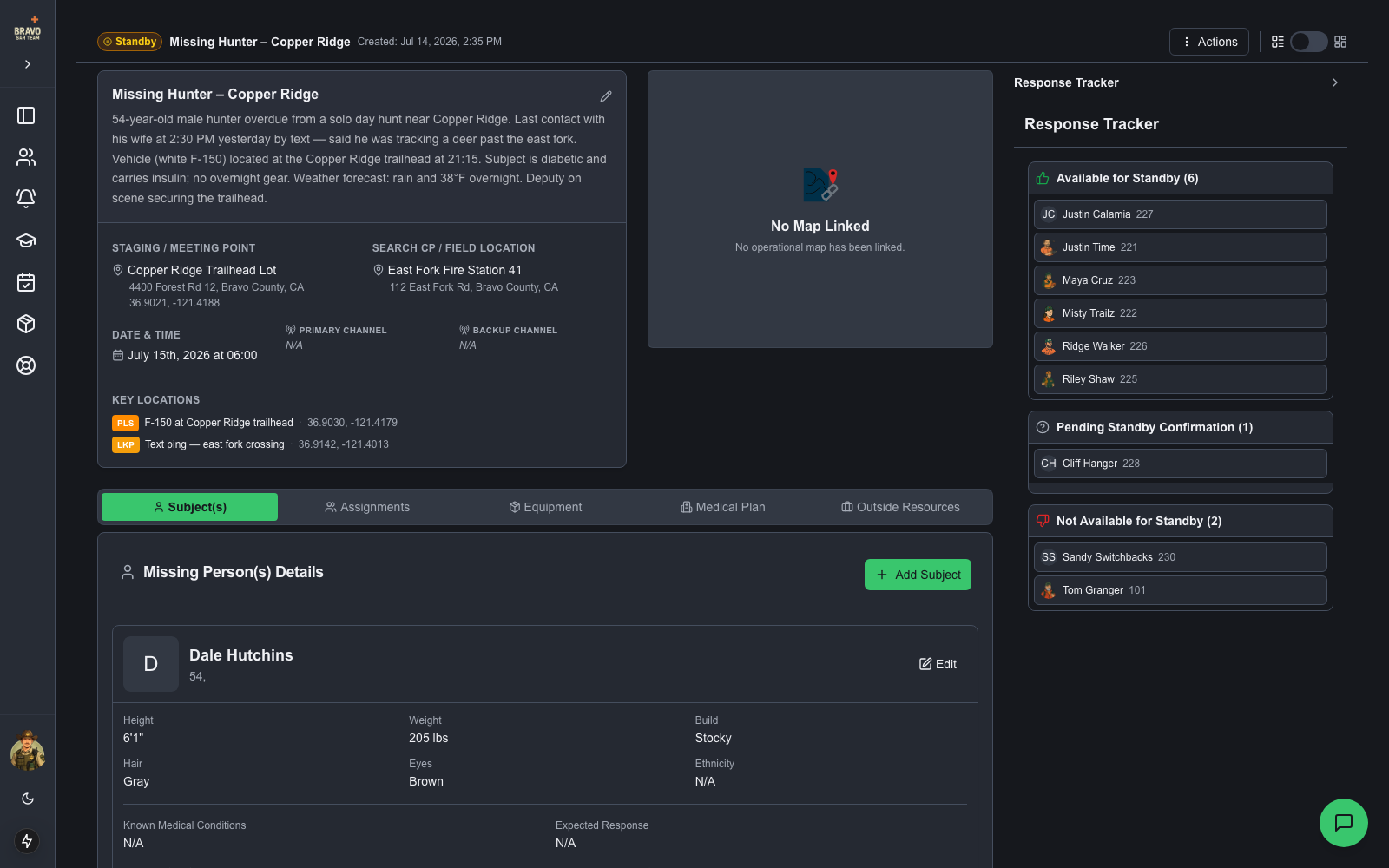
The request lands in your Callouts page under Pending with an amber Request badge. Admins get one-click actions right on the callout — Investigate, Standby, Deploy, move to Draft, or Decline — and the requesting deputy is automatically notified when the status changes.
While the callout is active, the agency user can keep adding details as the incident evolves — subject descriptions, updated locations — and even reserve equipment onto the callout for the team to load. Status changes, member dispatch, and operations stay entirely in your team’s hands.
Show the agency their request is being handled
The moment a request notification reaches your configured leadership, the agency’s record automatically shows "Request received by team · Awaiting review" — so they know it didn’t vanish into an inbox before anyone even opens it.
Anyone who can manage callout status can click Mark In Review, next to the "Agency requested" label in the callout header, to claim it. The agency then sees "In review by {name} since {time}" on the record, an "In Review" indicator on their dashboard row, and gets a push notification — all before you’ve made a single status decision.
What agency users track on their own dashboard
My Callout Requests now carries live micro stats on every row: when leadership was notified ("Notified 2:34 PM"), when the team-wide alert went out ("Team alerted..."), and running response counts — "6 available · 2 not available · 1 on scene" for Standby, or responding/not responding for Deploy. Pending requests sort to the top, marked with a distinct grey dashed "Request" chip and a "Standby requested" or "Deploy requested" line.
If your team is active on a Standby or Deploy callout the agency user didn’t request themselves, their dashboard shows a "SAR team is active on {title}" banner linking straight to it — so they’re never the last to know the team is already moving. The whole dashboard updates in real time, no refresh needed.

Agency users can score urgency too
Agency users have their own Search Urgency Analysis button next to Request Callout in the dashboard header, so a coordinator can score a case before deciding whether to formally request the team. After the disclaimer and questionnaire, they see the same score, rating, and critical-factor flags, then choose Request Standby, Request Deploy Now, Save Report, or Dismiss.
Requesting carries the completed analysis straight into their New Callout Request — no re-entering it — and it’s logged to the Search Urgency Reports audit trail like any other analysis, giving both sides of the relationship the same documented reasoning.