
Track clues, synced with CalTopo
Clues flow both ways: field teams drop them in the CalTopo app, command reviews and triages them in SAR21, and every status decision is reflected on the map automatically.
About 5 minutesStep 17 of 23 in team setup
Clues from the field appear automatically
Field teams don’t need to change how they work. When a searcher drops a clue marker in the CalTopo app, it syncs into the callout page in SAR21 and lands in the Incoming group of the Clues section — timestamped, with coordinates, ready for command to review.
No radio relay, no re-typing coordinates at the command post: if it’s on the map, it’s in SAR21.
Use CalTopo’s dedicated Clue tool when dropping clues in the field — clue objects sync to SAR21 automatically. A plain marker (even inside a folder named "Clues") is treated as a map marker, not a clue.
Log clues and markers from SAR21 too
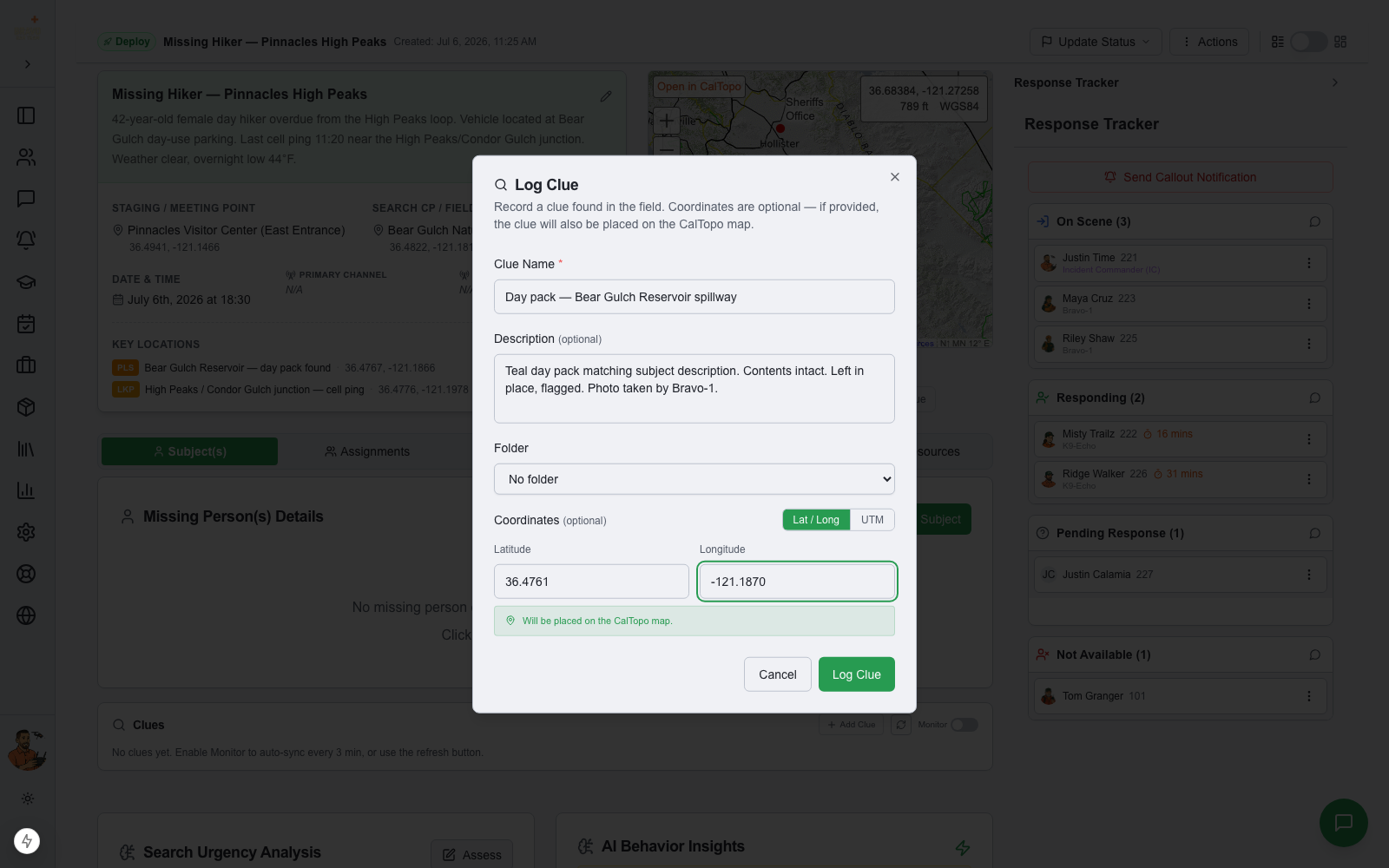
Sync works in the other direction as well. From the callout page, Log Clue records a clue found in the field — name, description, and optional coordinates. Add coordinates and the dialog confirms it live: the clue is placed on the CalTopo map for every field team to see. Without coordinates it’s tracked in SAR21 only, so you can still log a phoned-in report before it’s pinned down.
Use Add Marker for non-clue map points — hazards, road closures, staging changes — which are placed straight onto the CalTopo map in the folder you choose.
Triage with the clue status workflow
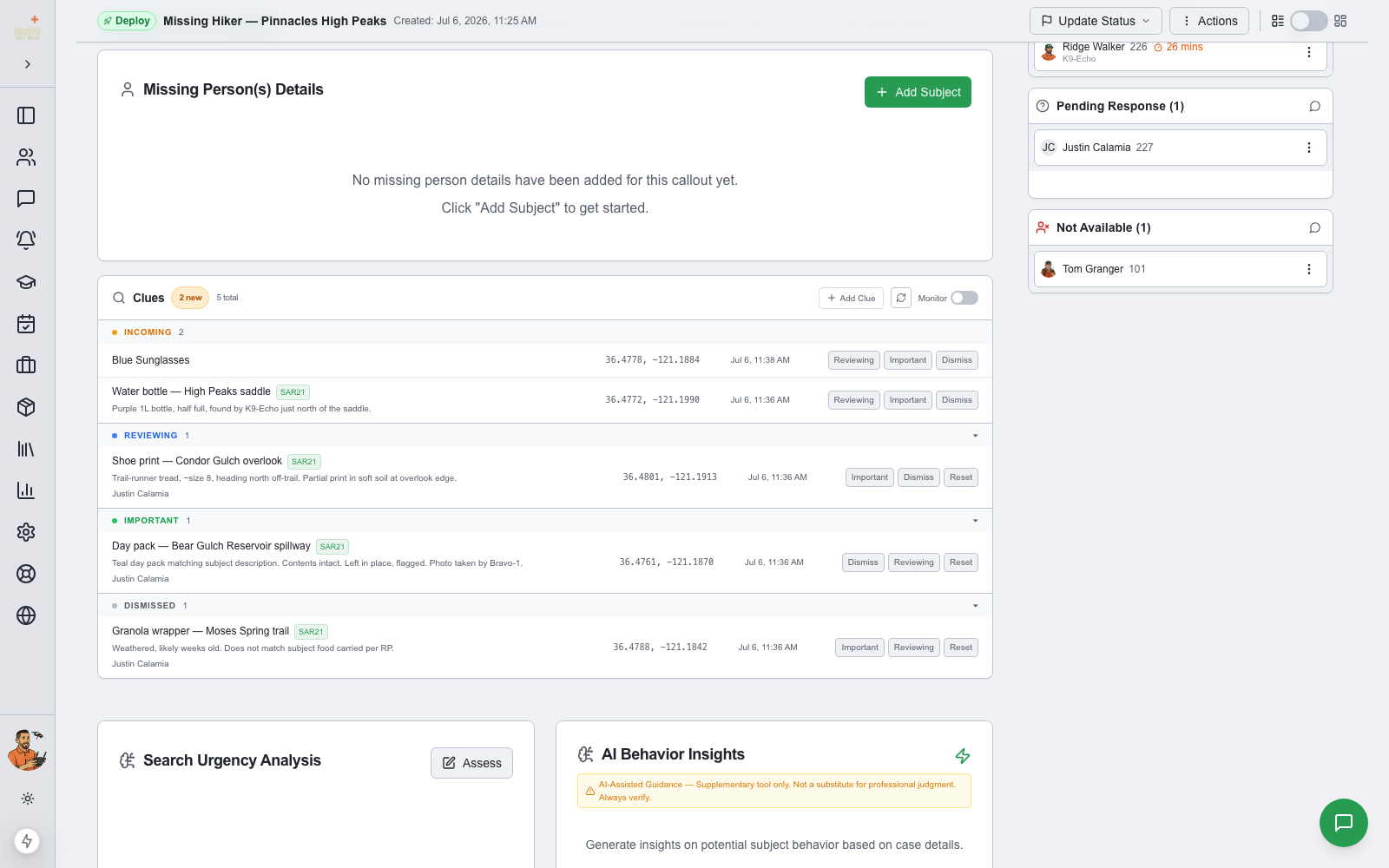
Every clue moves through a simple pipeline in the Clues section: Incoming → Reviewing → Important or Dismissed. One click moves a clue to the next stage, and the groups keep the list readable — new clues stay front and center while dismissed ones collapse out of the way.
- Incoming — just arrived, nobody has looked at it yet
- Reviewing — command is actively evaluating it
- Important — validated and relevant to the search
- Dismissed — evaluated and ruled out
Status decisions update the map — automatically
This is where the folder routing you configured in the CalTopo integration pays off. Mark a clue Important in SAR21 and it moves to your Clues - Important folder on the CalTopo map; dismiss it and it files into Clues - Dismissed. Field teams looking at the map instantly see which clues matter without anyone touching CalTopo by hand.
And it stays bi-directional: if someone drags a clue between those folders in CalTopo, SAR21 picks up the change on the next sync and updates the status to match. The clue’s status is also written to its CalTopo Instructions field, so it’s visible even from the marker popup.
The folder-to-status mapping is set in Admin Settings → CalTopo Integration → Clue Status Routing (covered in the Connect CalTopo guide). The default template ships with Clues - Reviewing, Clues - Important, and Clues - Dismissed folders already wired up.