Run a Search Urgency Analysis
Replace the paper urgency chart: score the ten standard factors — before a callout even exists or right on the callout page — and get an instant, color-coded response recommendation that’s logged for your team’s records.
About 6 minutesStep 18 of 23 in team setup
Run it before a callout exists
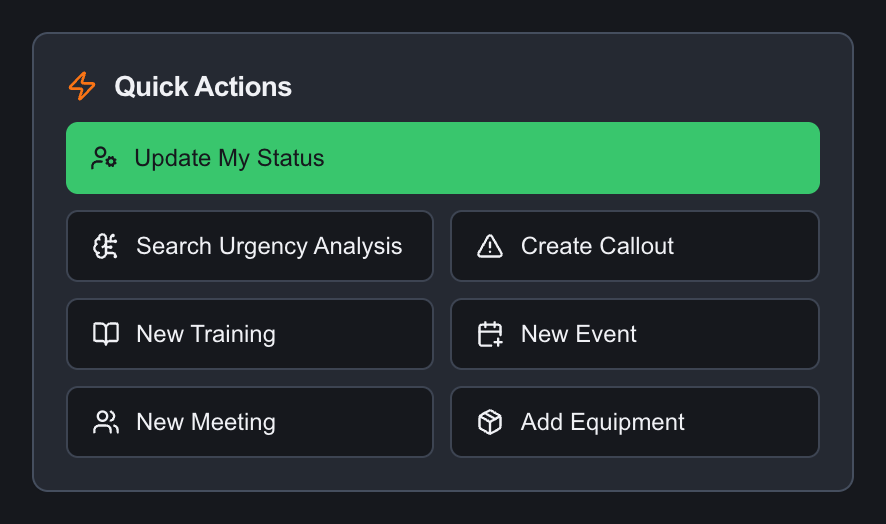
You don’t need an open callout to score urgency. Any team member with permission to create callouts finds a Search Urgency Analysis button in the dashboard Quick Actions, right before Create Callout — use it the moment a report comes in, while you’re still deciding whether to activate the team. Agency users have the same button in their dashboard header, next to Request Callout.
It’s the same questionnaire either way. Running it pre-callout just means the scoring happens first, and the decision of what to do with the result happens after.
Acknowledge the disclaimer, then open the questionnaire
Every time an urgency form opens — pre-callout or from inside a callout — SAR21 shows a short disclaimer first: the tool follows standard SAR urgency protocols and scoring, but it’s decision support only. Verify the inputs and apply professional judgement; the score should never be the sole basis for the decision. Acknowledge it to continue.
From the callout page, open the Subject(s) tab and scroll to the Search Urgency Analysis card — it sits right beside AI Behavior Insights. Click Assess (or Edit, if an analysis was already saved) to open the questionnaire there instead.
Rate the ten factors
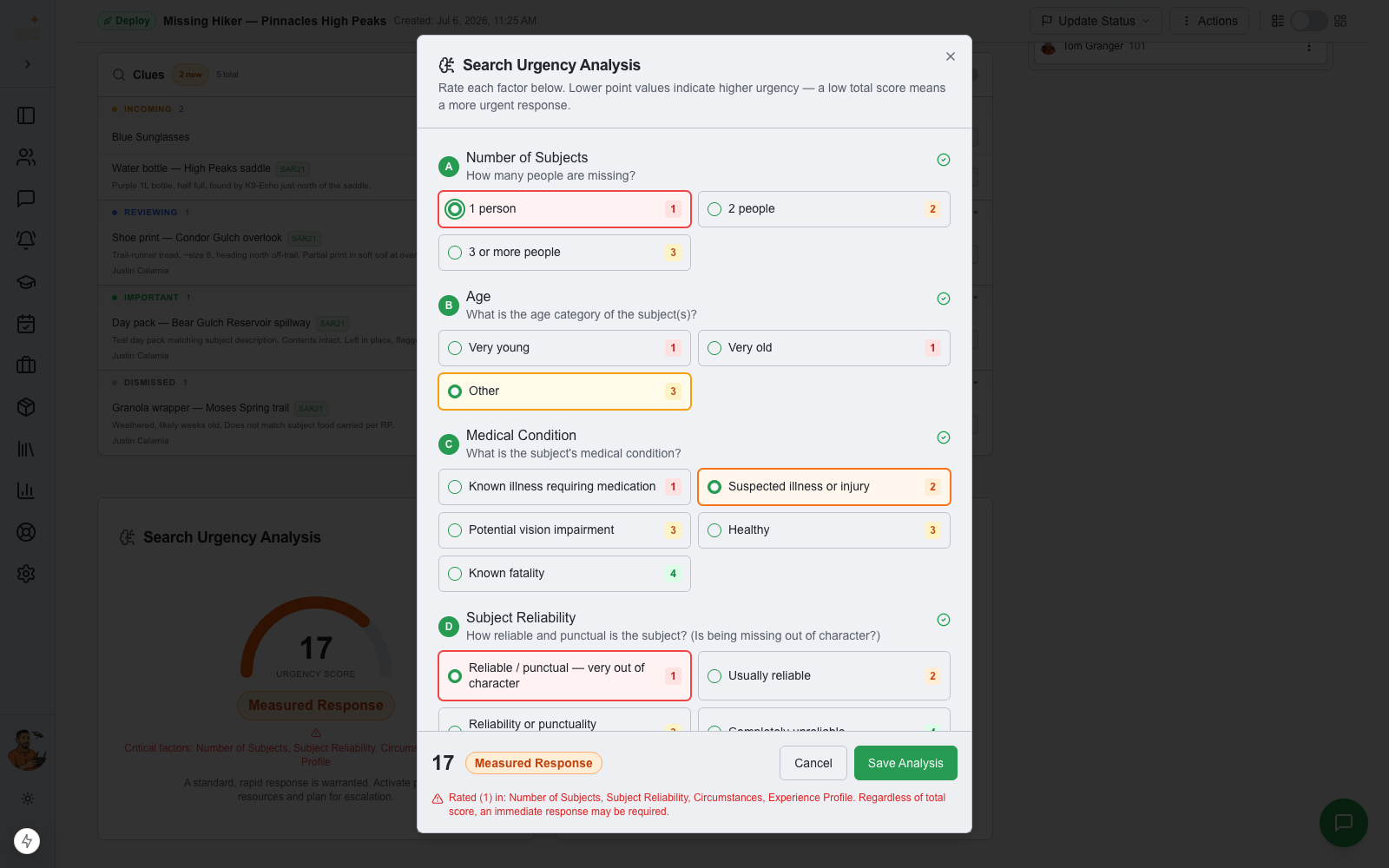
Work through the ten factors — number of subjects, age, medical condition, reliability, circumstances, experience, physical condition, weather, terrain, and equipment. Tap one answer per factor; each option shows its point value, color-coded from red (1 — most urgent) to green (4 — least urgent).
The footer keeps a live tally as you go: a progress bar while questions remain, then your total score and the recommended response level the moment the last factor is rated. Lower totals mean higher urgency.
- Urgent Response (10–15) — immediate deployment of all available resources
- Measured Response (16–27) — standard rapid response, plan for escalation
- Evaluate & Investigate (28+) — investigate further before a full-scale search
Any factor rated (1) raises a critical-factor flag — regardless of the total score, an immediate response may be required. The flagged categories are listed under the score.
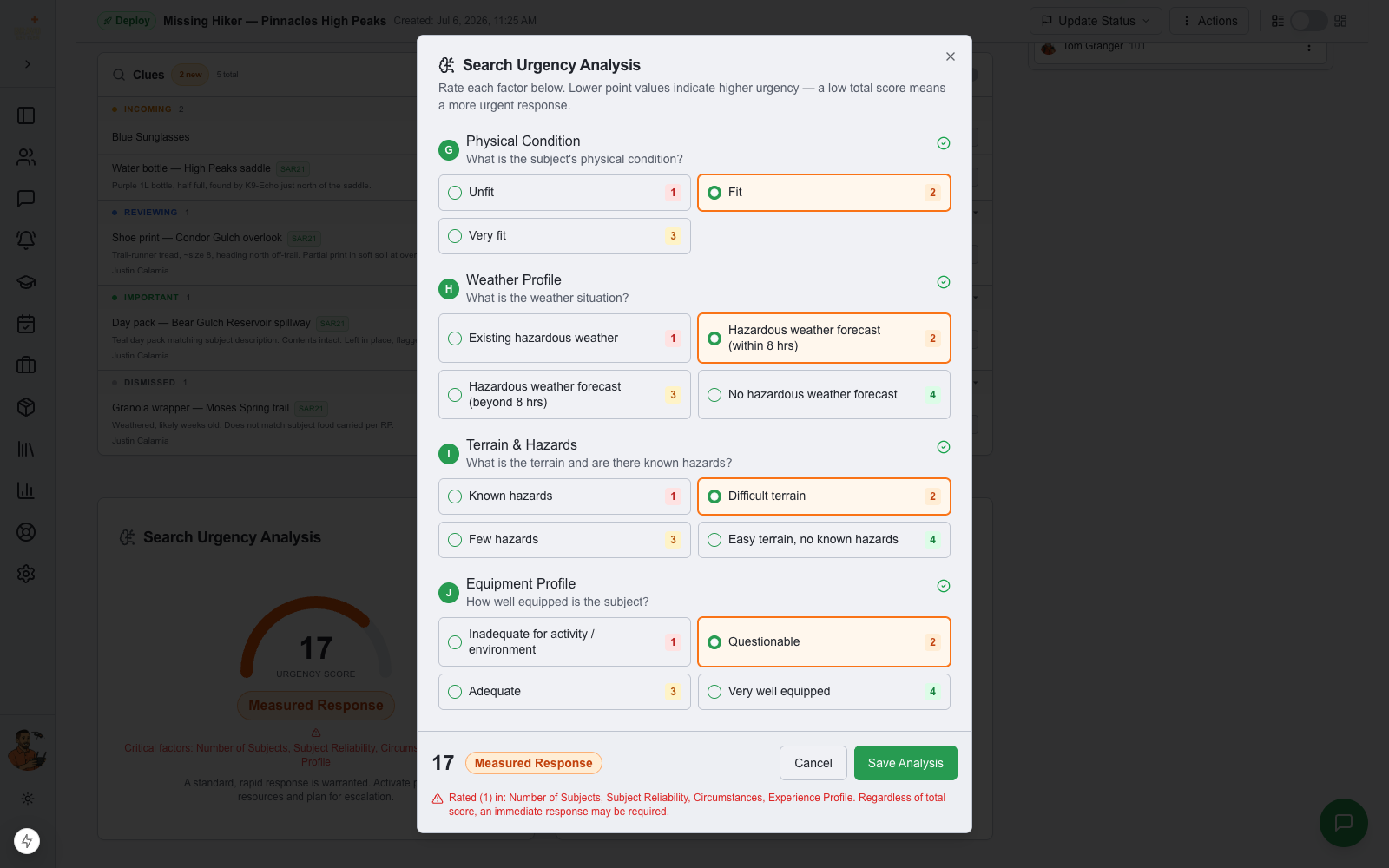
Save it to the callout record
From inside a callout, click Save Analysis and the result is stored right there: the score gauge, the response recommendation, and any critical factors show on the card for the whole team. Re-open it with Edit at any time as new information changes the picture — the previous answers are restored so you only adjust what changed.
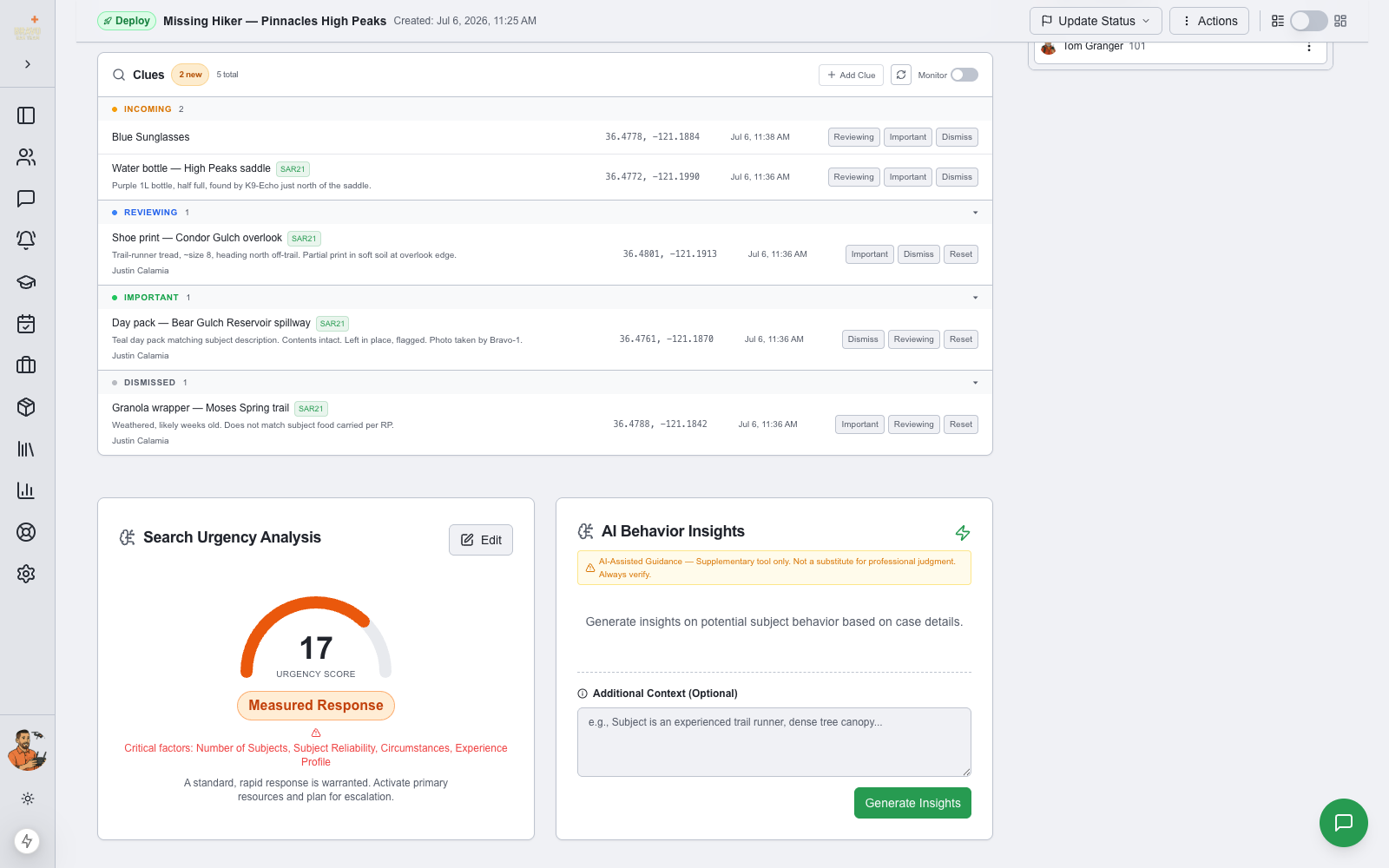
Finishing a pre-callout analysis: four options
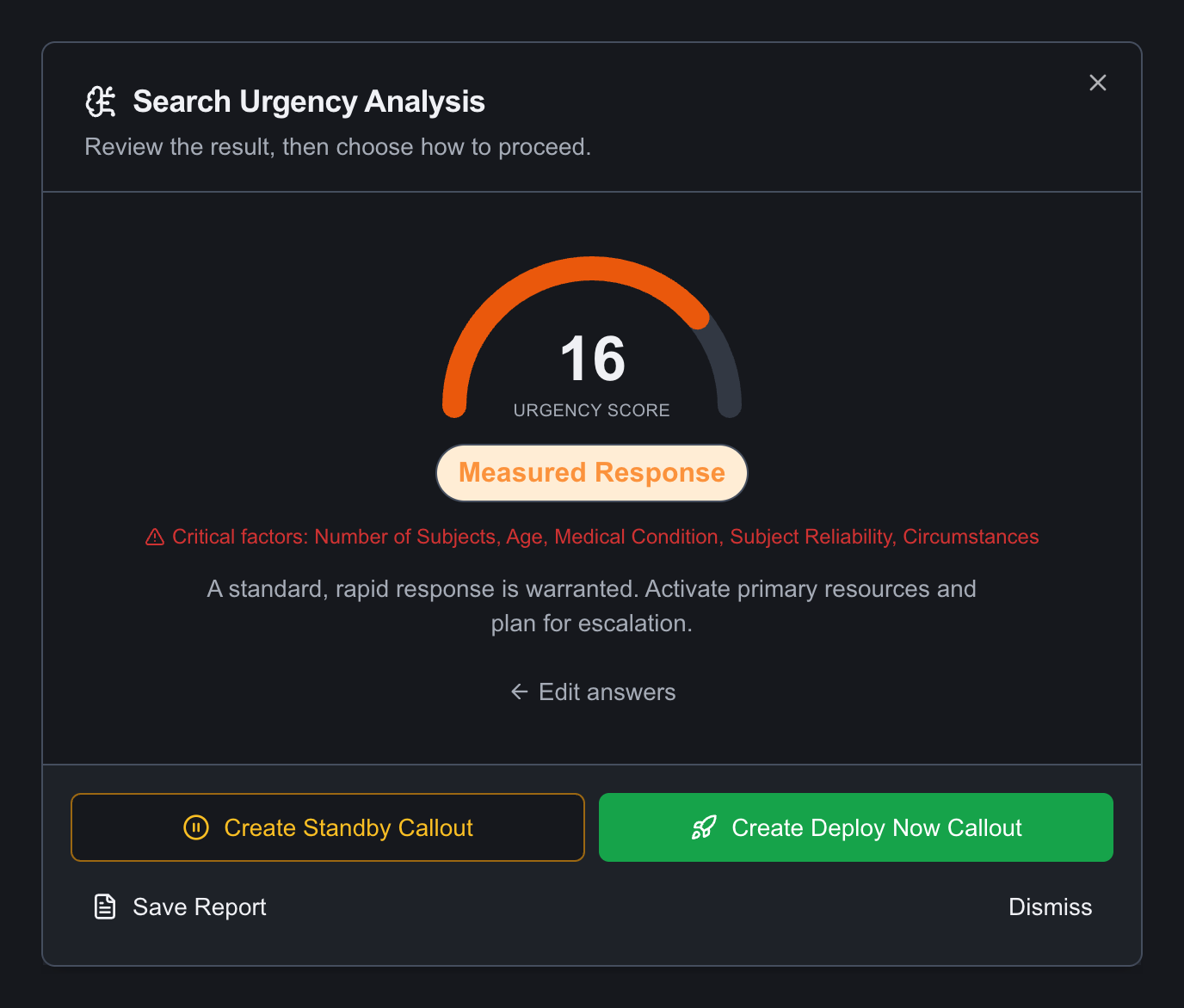
Complete a pre-callout questionnaire and you land on the same score gauge, rating, and critical-factor flags — with four ways to act on it:
- Create Standby Callout / Create Deploy Now Callout — carries the analysis straight into the New Callout form. Agency users see the equivalent Request Standby / Request Deploy Now.
- Save Report — stores the analysis as a standalone record without creating a callout.
- Dismiss — closes it out with no callout and no saved report.
Choosing Create/Request opens the New Callout form with a removable "Search urgency attached" banner and the matching Standby or Deploy status preselected. Finish the form and the analysis saves onto the new callout automatically — its Search Urgency card shows the completed gauge with nothing to re-enter.
Saved reports require a decision note
Choose Save Report and SAR21 requires a decision note before it will save — a short explanation of why a search was, or wasn’t, initiated. That note, along with who ran the analysis and when, becomes part of the permanent record.
It’s the piece that matters most when a low-urgency call never turns into a callout: the reasoning is captured at the time, not reconstructed from memory later.
Every analysis is logged for the record
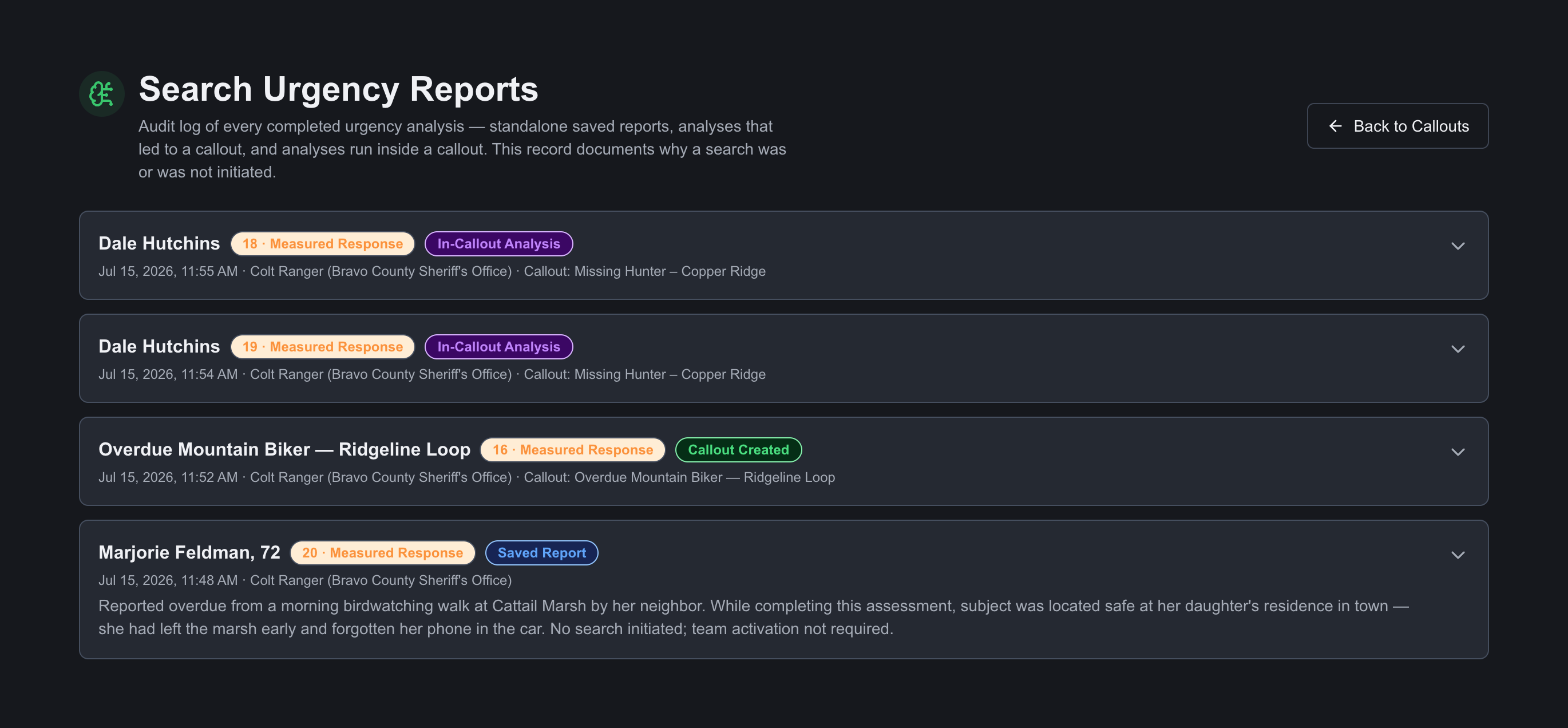
SAR21 automatically logs every completed analysis — standalone saved reports, analyses that became callouts, and analyses run or edited inside a callout — to the Search Urgency Reports page. Reach it from the Urgency Reports button in the Callouts page header, or go straight to /urgency-reports.
Each entry shows the date, who ran it (and their agency, if applicable), the subject, the score and rating, a source badge — Saved Report, Callout Created, or In-Callout Analysis — the decision note, and a link to the callout when one exists. Admins can delete entries; otherwise the log is immutable.
The result is a defensible, timestamped history of every urgency decision your team has made — exactly why a search was or wasn’t launched, on every case, without anyone maintaining a separate log.