Organise the team into groups
Callout groups grew up. A group is now a list of people with leaders, a colour and, for an operational group, requirements its members must keep meeting: certifications, education modules, training attendance, approved hours, permissions or an operational K9. Members stay active while they meet them, and callouts can page only those who do.
About 8 minutesStep 21 of 23 in team setup
Find your groups
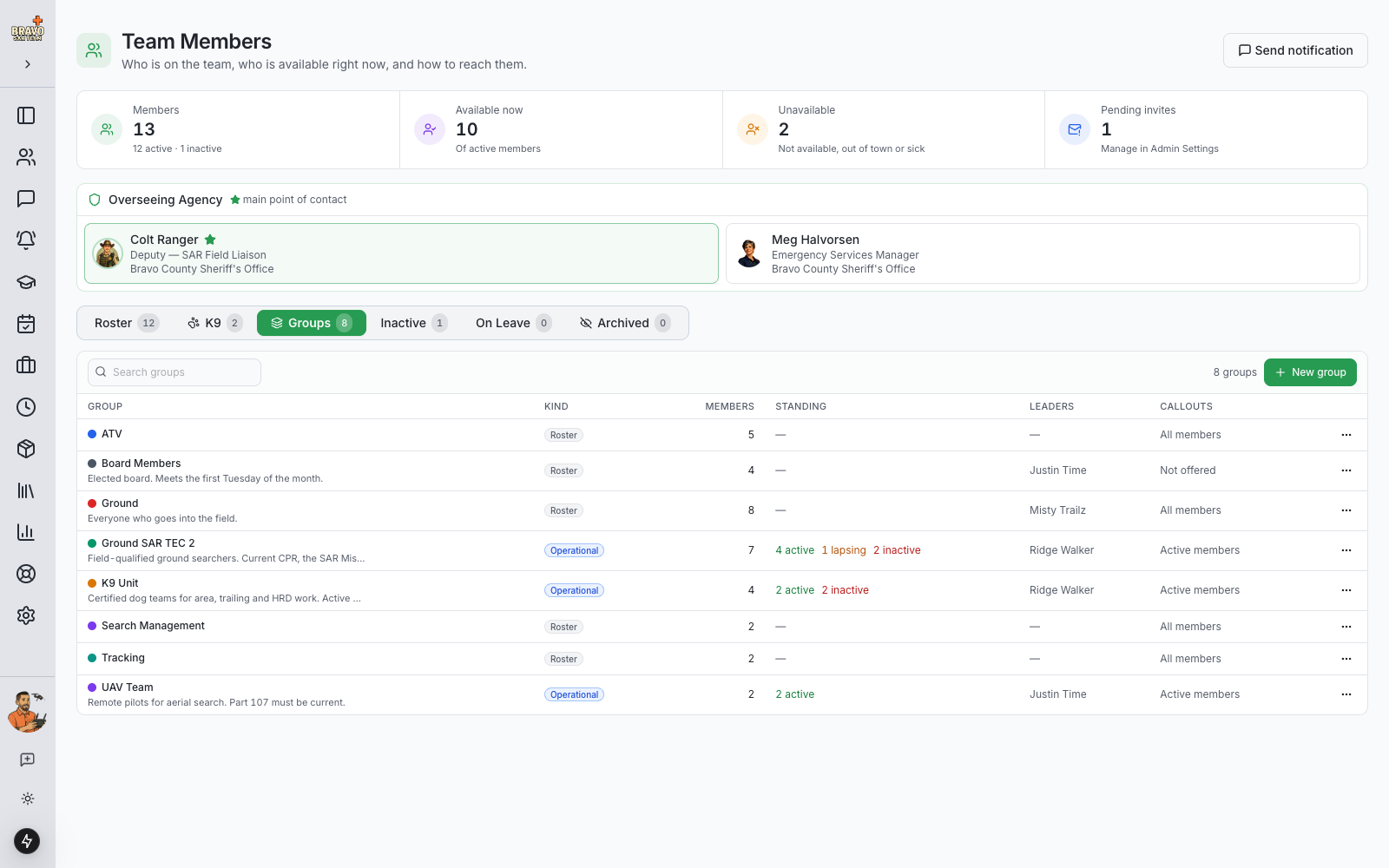
Team Members has a Groups tab beside Roster. Your existing callout groups are already there as roster groups, with the same names and members, so nothing you set up before is lost. Every member can open the tab and see who is in what.
Each row shows the kind, how many members, where they stand (for operational groups), the leaders, and whether callouts can target the group. Click a name to open it.
Create a group
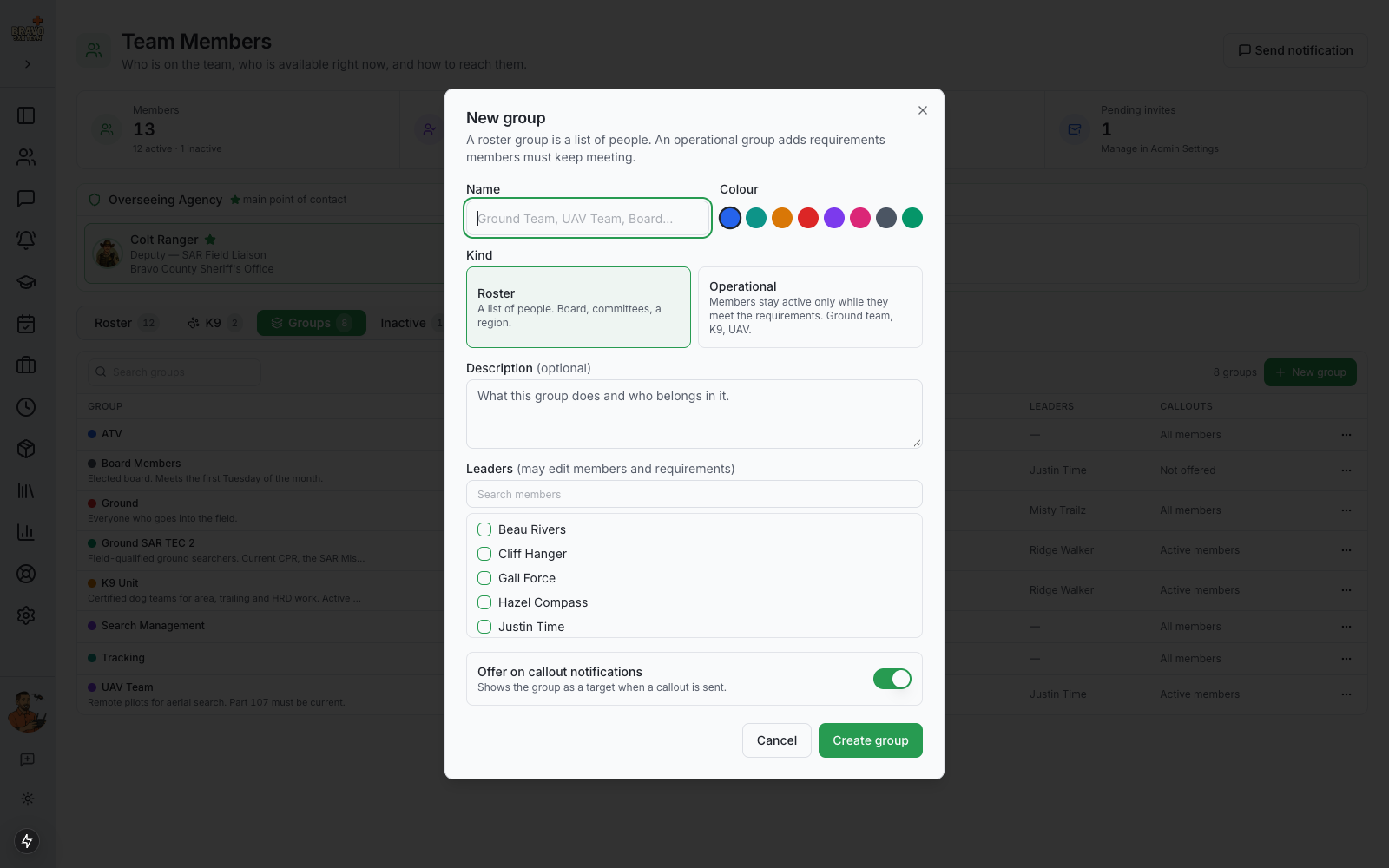
Admins click New group. Give it a name, a colour and a short description, then choose the kind:
- Roster — a plain list of people. Board members, a committee, a region. No requirements.
- Operational — members stay active only while they meet the requirements you set. Ground team, K9 unit, UAV pilots.
Leaders may edit the group’s members and requirements without being Admins. Only an Admin can rename a group, change its leaders, or change how callouts target it.
Add members and read the standing
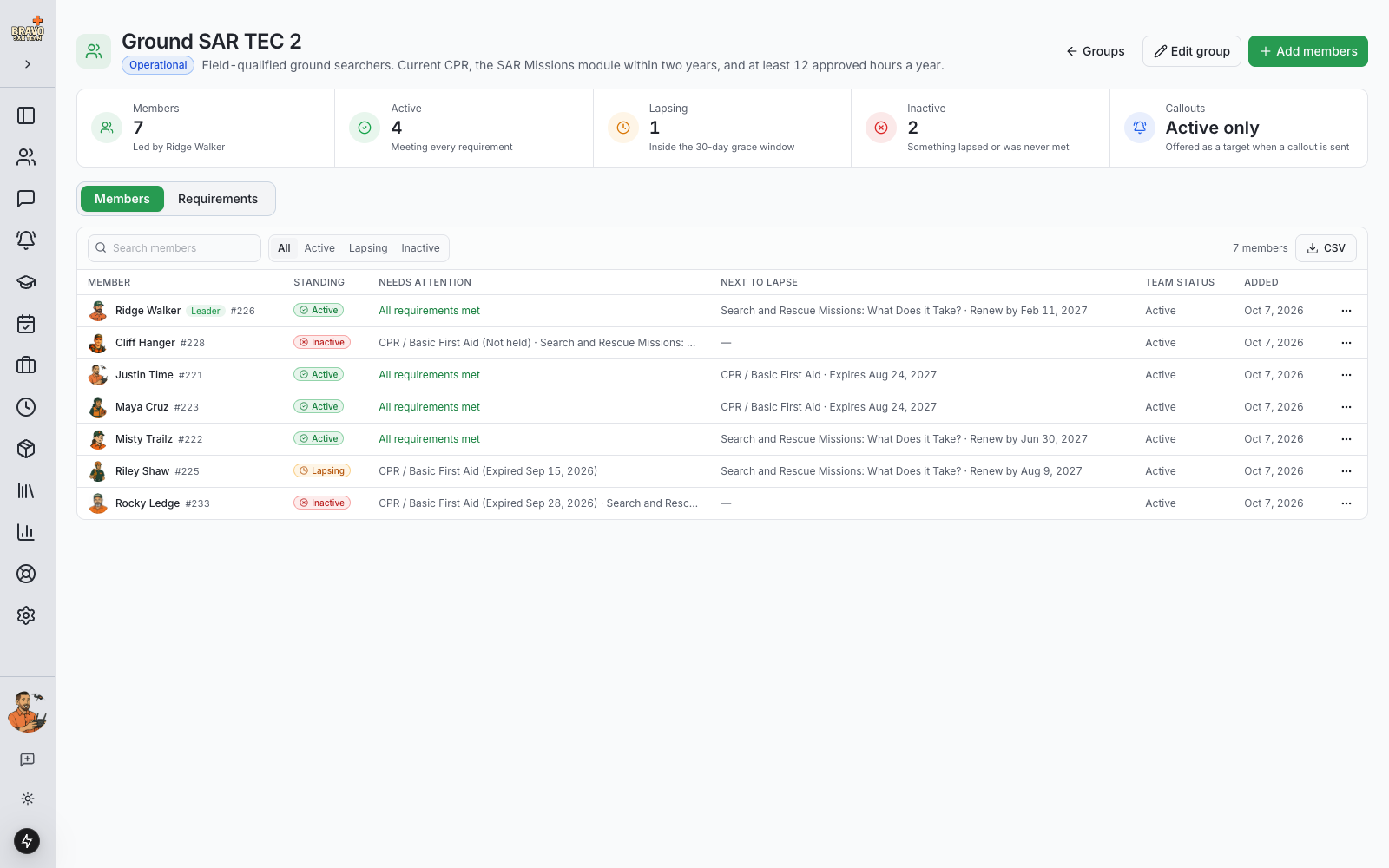
Open the group and click Add members to tick people from the active roster. On an operational group every member gets a standing: Active when every requirement is met, Lapsing when something expired inside the grace window, Inactive when something lapsed past it or was never met. The Needs attention column spells out exactly what, and Next to lapse shows what will expire first.
Filter the list by standing, search by name, or export the whole table as a CSV for a board report.
Set the requirements
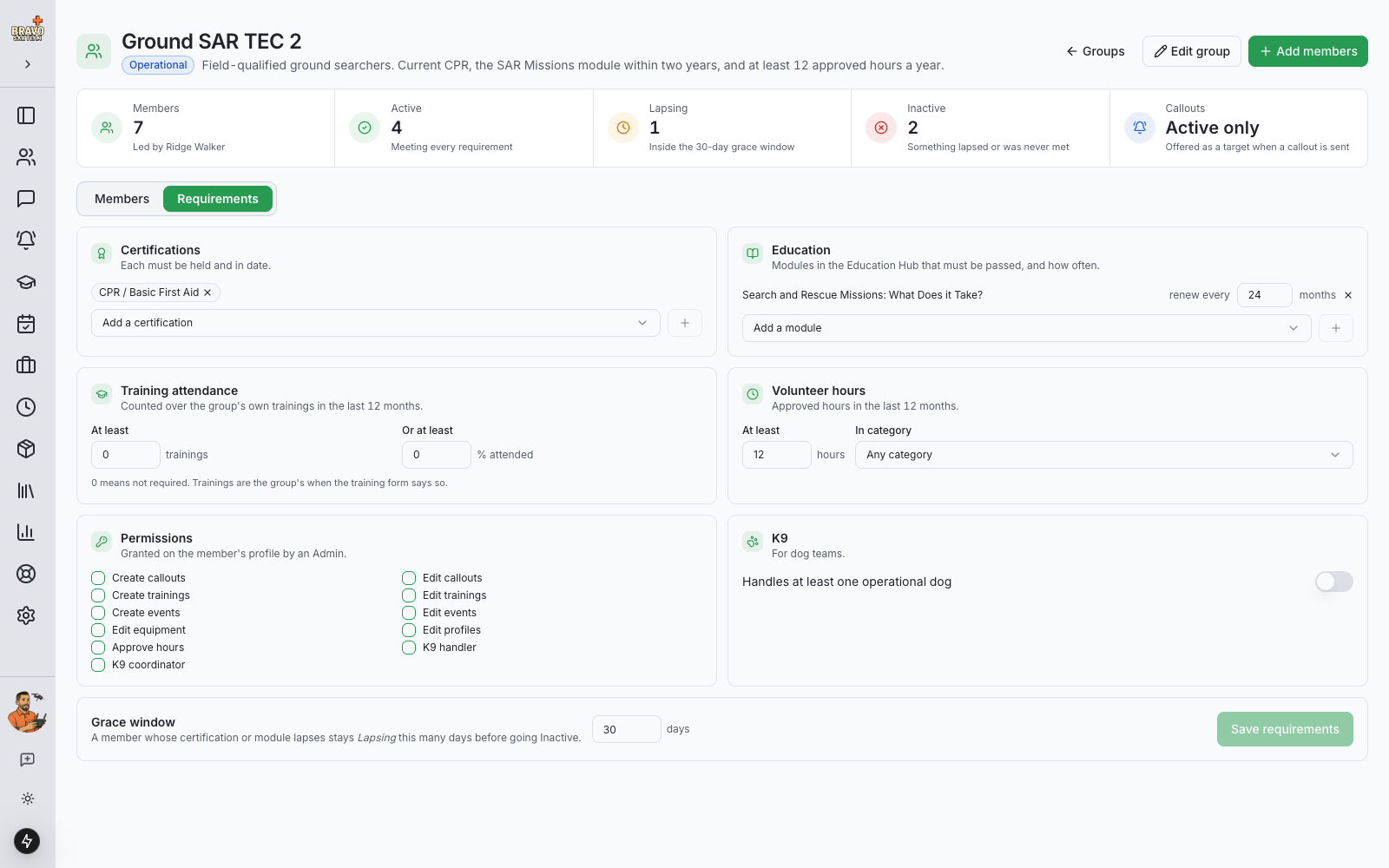
On the Requirements tab, add what the group asks of its members. Each block is one kind of requirement and an empty block asks nothing:
- Certifications — held and in date.
- Education — a module from the Education Hub, passed within a number of months, or just once.
- Training attendance — at least so many of the group’s own trainings in the last 12 months, or a percentage of them.
- Volunteer hours — approved hours in the last 12 months, in one category or any.
- Permissions — for groups that are a role rather than a skill (a Search Management group that requires Create callouts). Ticking one grants nothing; a member without it reads Inactive until an Admin grants it on their profile.
- K9 — the member handles at least one operational dog.
The grace window is how many days a lapsed certification or module keeps a member at Lapsing before they go Inactive. Everything counts over a rolling 12 months.
Keep someone active anyway
A leader can make a judgement call. From the member’s row choose Keep active anyway, give a reason and an end date, and the member counts as active until then whatever the checks say. The reason shows beside their standing, on their own profile and on the phone, so nobody later wonders why.
Page only the people who can go
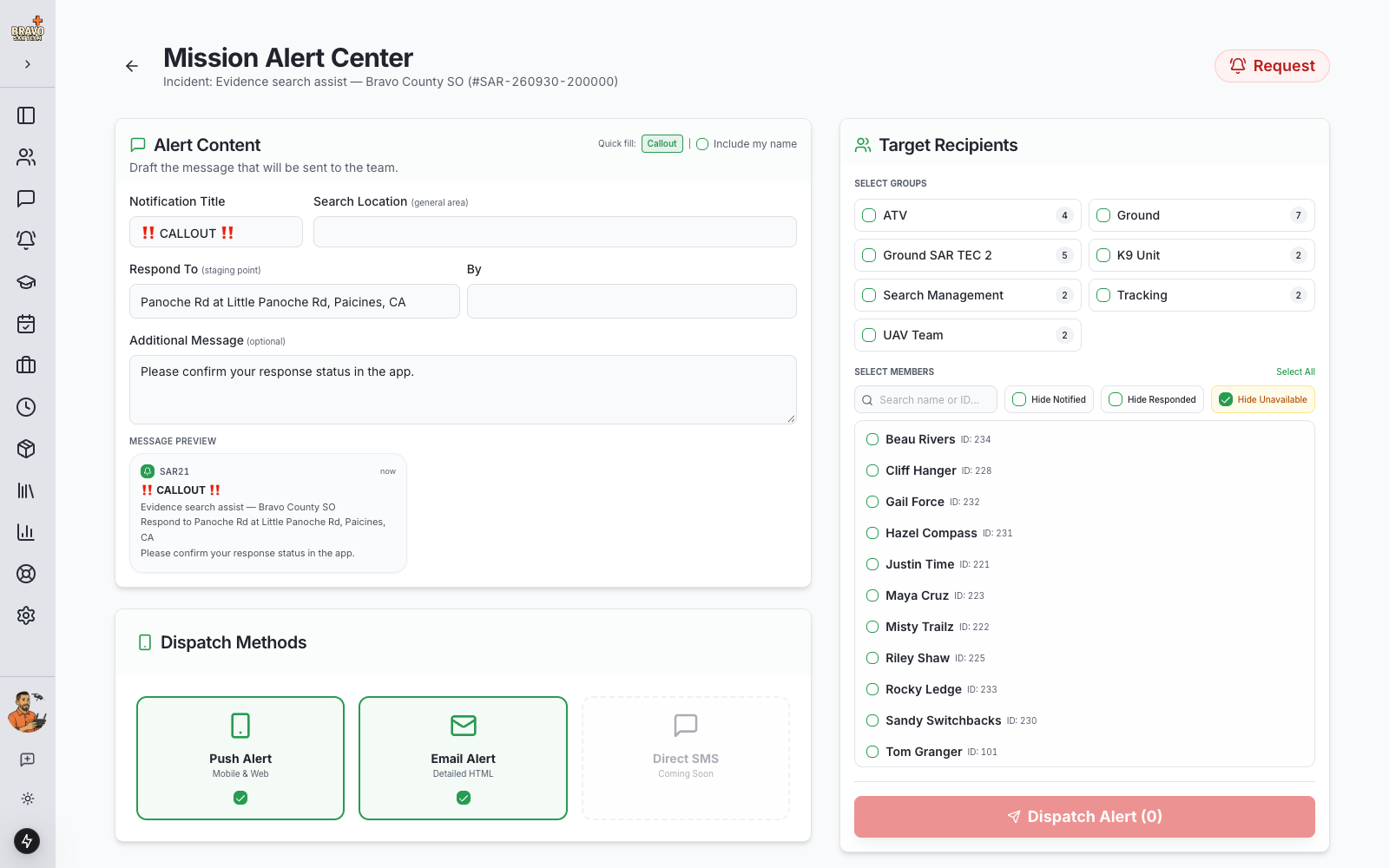
On the callout notification page each group is offered as a target, as before. An operational group set to Active members only pages just the members currently meeting its requirements, so a mission that needs certified dog teams does not page a handler whose dog is in training. Switch that off on the group to page everyone in it.
Trainings can be for a group: pick the group on the training form, its members are invited, and the session counts toward the group’s attendance requirements.
Members see where they stand
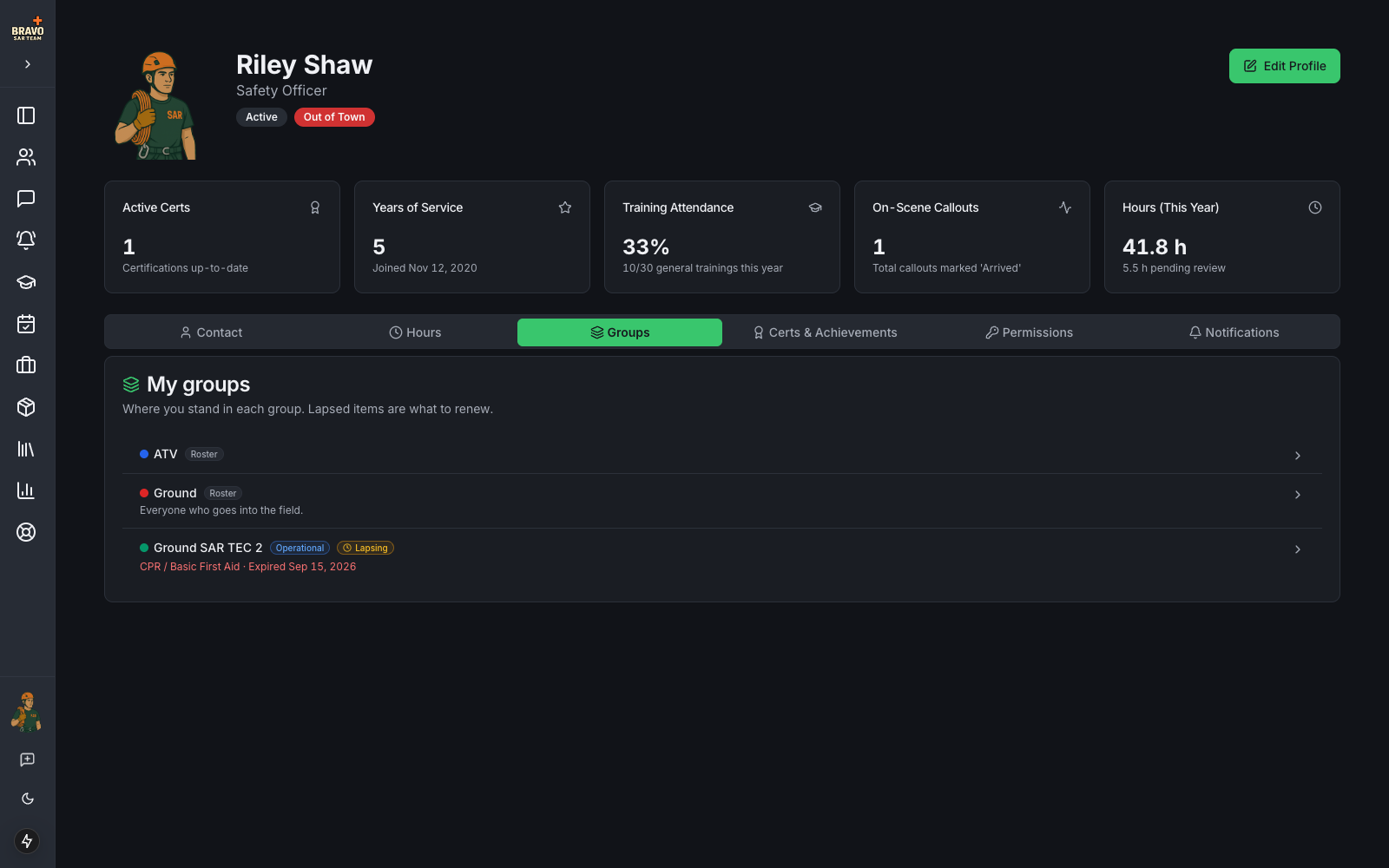
Every member’s profile shows My groups with their standing in each operational group and what to renew. The dashboard’s Needs attention list says when your standing is lapsing, and tells leaders and Admins how many members in their groups need a word.
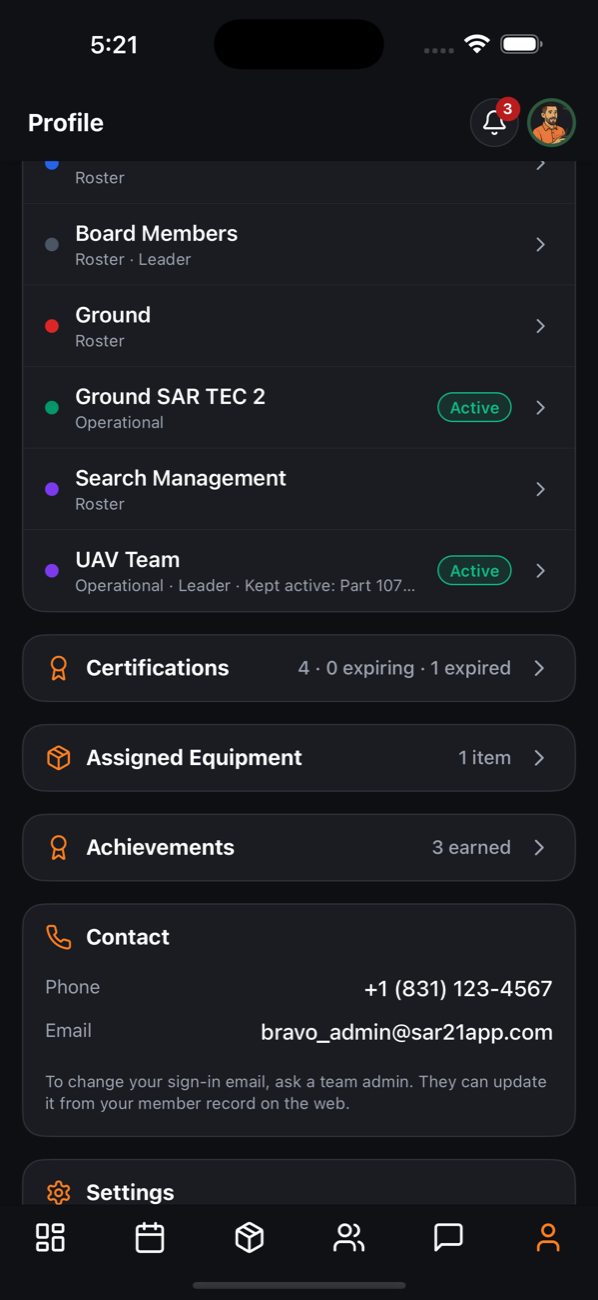
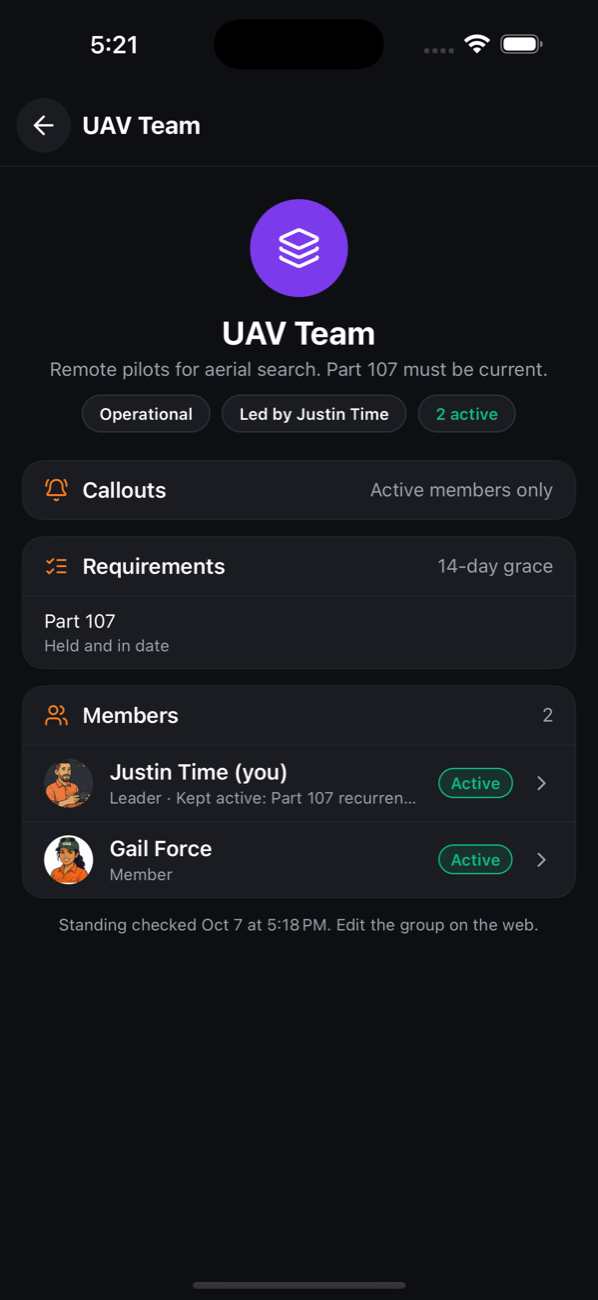
On the mobile app the same card sits on the Profile tab. Tapping a group opens it: the requirements, the leaders, and every member with their standing. Editing stays on the web.