Connect CalTopo
Link your team’s CalTopo account once, and SAR21 builds a fully-foldered mission map automatically every time you create a callout.
About 10 minutesStep 4 of 23 in team setup
Get your CalTopo team ID and service account credentials
You’ll need a CalTopo Team subscription. Sign in to CalTopo as a team admin and open your team admin page — your Team Account ID is right in the address bar:
caltopo.com/group/XXXXXX/admin — the XXXXXX segment is your Team Account ID.
On that same admin page, open Service Accounts and create a new service account with Manage permission. CalTopo shows the Credential ID and Credential Secret once, at creation — copy both before closing the page.
The same "where to find these IDs" reference is built into the form itself — click the info icon next to CalTopo Account IDs in Admin Settings.
Enter credentials and test the connection
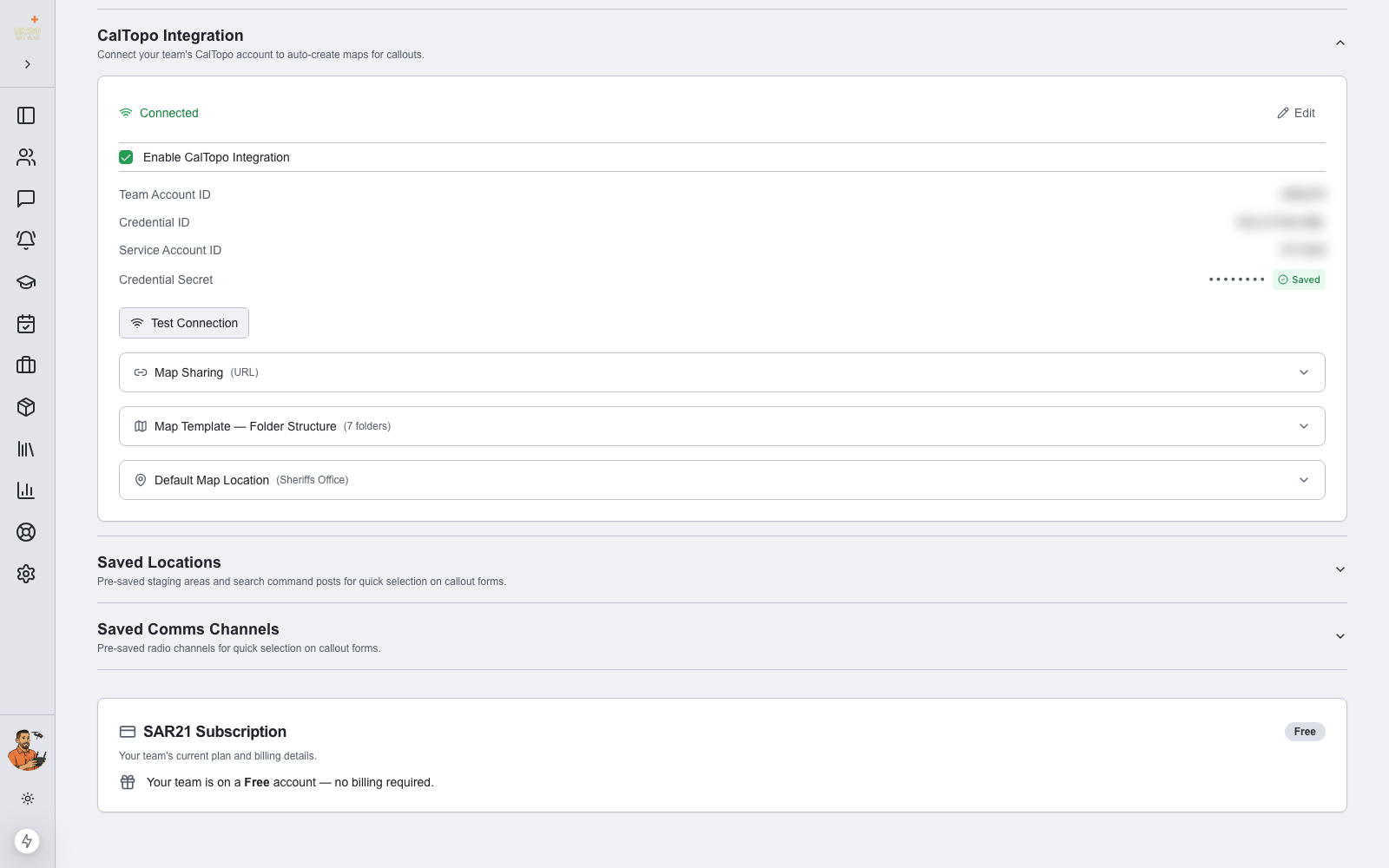
In Admin Settings, expand CalTopo Integration and check Enable CalTopo Integration. Enter the Team Account ID, Service Account ID, and Credential Secret, then click Test Connection. A green Connected status confirms SAR21 can talk to your CalTopo account.
The secret is stored securely and shown only as dots afterwards — use the Edit button if you ever need to rotate credentials.
Configure your map template
Three collapsible panels control what every auto-created mission map looks like:
- Map Sharing — who can open map links (URL, Secret, Public, or Private)
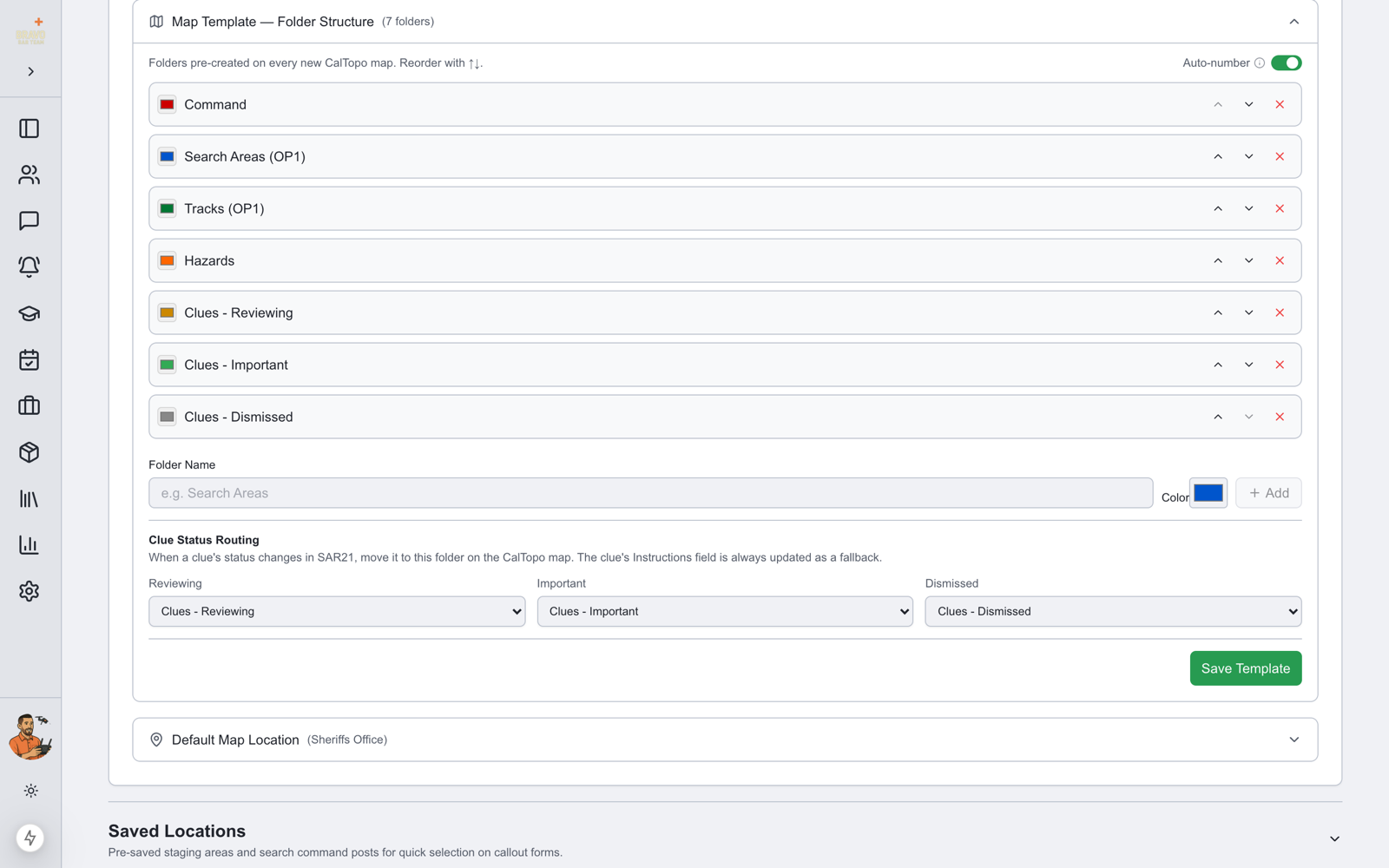
- Map Template — Folder Structure — the folders every new map starts with (Command, Search Area, Field Teams, Hazards, and Clues folders by default); rename, recolor, or add your own
- Default Map Location — the home-base coordinates each new map centers on
Clue folders are wired into the clue workflow: as your team marks clues Reviewing, Important, or Dismissed in SAR21, the markers move to the matching CalTopo folder automatically.
Maps create themselves on callout
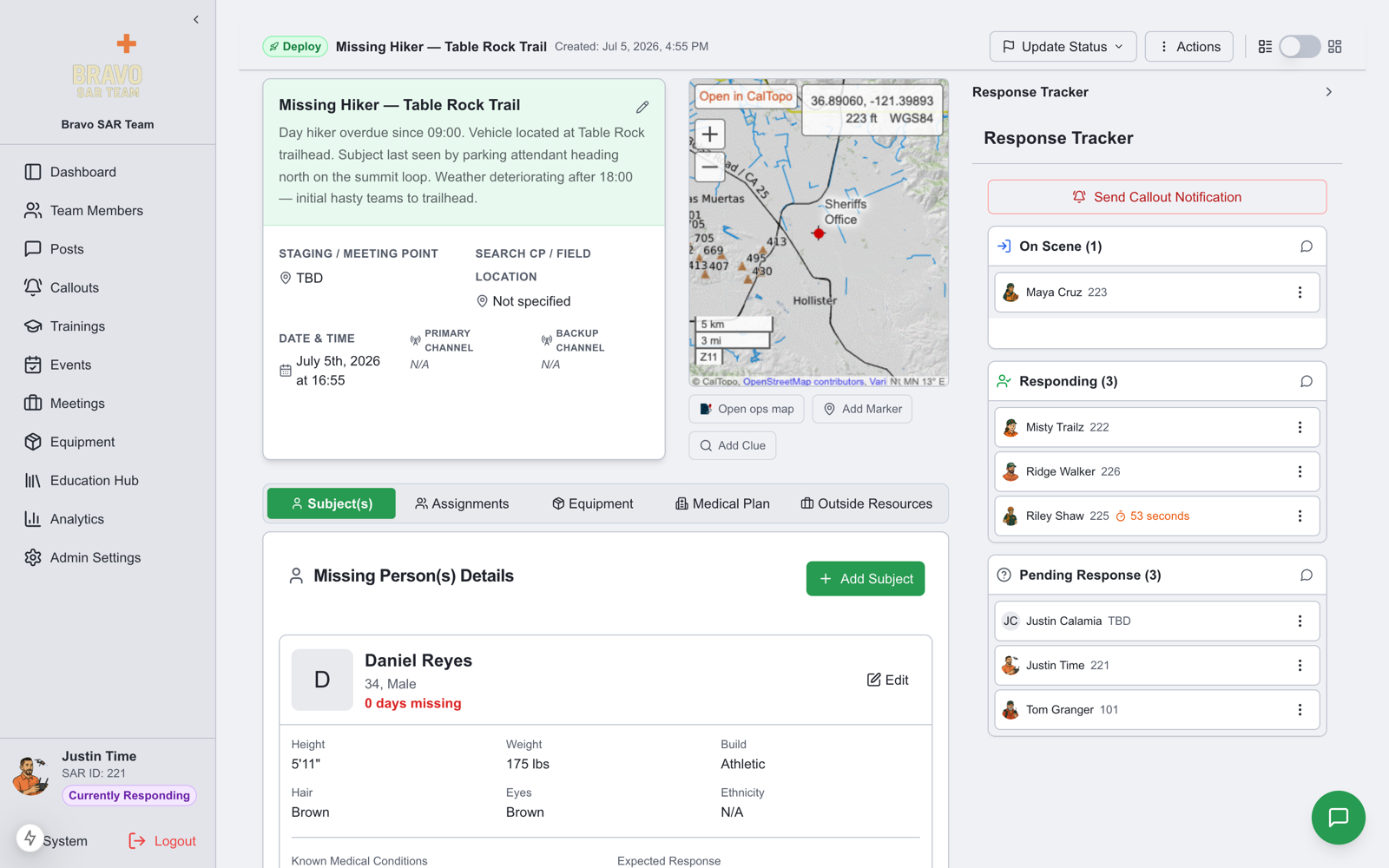
That’s the whole setup. From now on, the New Callout form shows a pre-checked "Create CalTopo map for this callout" option — when you create the callout, SAR21 builds the map from your template and drops markers for the Place Last Seen and Last Known Position if you entered coordinates. The live map is embedded right on the callout page.